
Excel Templater
Overview
Export Dataiku datasets into a pre-built Excel template and generate a populated .xlsx file in a managed folder.
This capability is provided by the Excel Templater plugin, which you need to install. Please see Installing plugins.
Use this capability when you already have an Excel workbook with formatting, formulas, pivot tables, or charts, and you want DSS datasets to populate specific cells or Excel tables in that workbook.
Prepare the Excel template
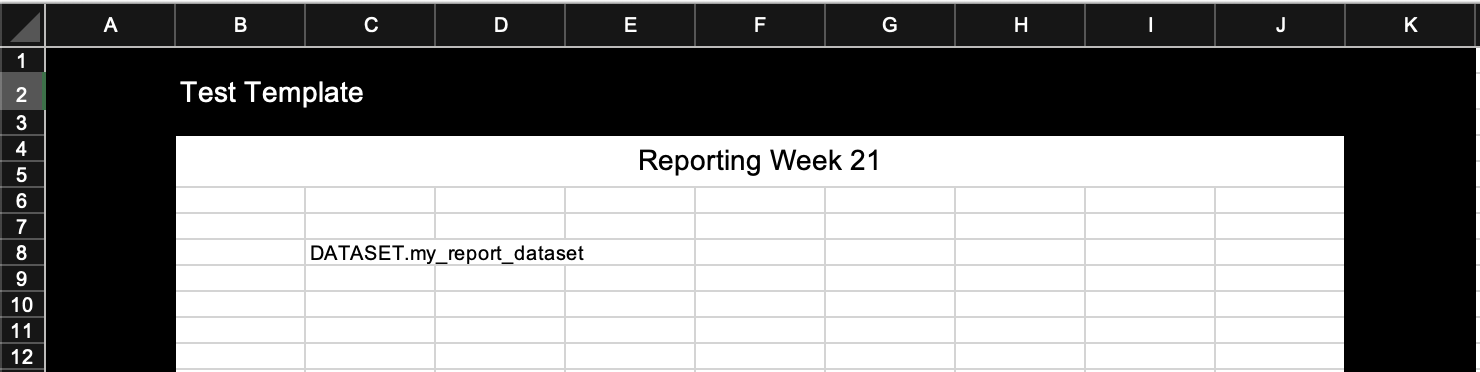
Create an Excel workbook and add tags where the recipe should write datasets.
For each dataset to insert:
Choose the cell where the dataset should start. This cell becomes the top-left cell of the inserted data.
In that cell, add a tag using
DATASET.<dataset_name>, whereDATASETis the default dataset keyword and<dataset_name>is the name of an input dataset.For a shared dataset, use
DATASET.<project_key>.<dataset_name>.
Dataset matching is case-insensitive. When a tag does not include a project key, datasets from the current project are matched first, then shared datasets.
You can also use a custom dataset keyword in the recipe settings. For example, if you set the keyword to DSSDATA, template tags must use DSSDATA.<dataset_name>.
If a tag is placed on the first row of an Excel table, the recipe keeps the table formatting and extends the table vertically to fit the inserted dataset rows.
Note
Building pivot tables from exported Dataiku datasets? In your Excel template, set them to refresh on open for up-to-date data.
Upload the Excel template to a managed folder.
Create the recipe
Create the Populate Excel Template from Dataiku Datasets recipe from one of the following places:
Select the managed folder that contains the template, then click Actions > Plugin recipes > Excel Templater.
Click + ADD ITEM > + Recipe > Excel > Excel Templater.
Configure the recipe with:
The input template folder containing the Excel template.
The input datasets referenced by the template tags.
The output folder where the generated Excel file will be written.
Recipe settings
Template file: Select the Excel template from the input folder.Output Excel file: Provide the name of the generated file. Do not include the.xlsxextension; it is added automatically.Output columns headers: Enable this option to output dataset column names.Dataset Keyword: Optionally set the keyword used to identify dataset tags in the workbook. The default isDATASET.
Output
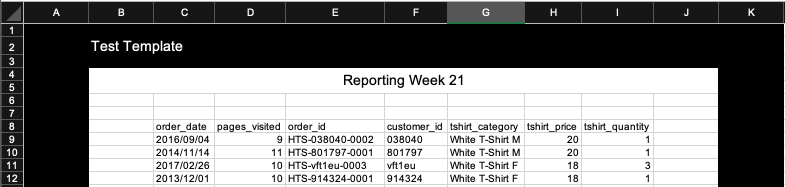
Run the recipe to generate the populated Excel file in the output folder.
Limitations
If a tag does not match any recipe input dataset, the corresponding cell is not populated. Make sure that each tagged dataset is added as an input to the recipe.