
ONNX Exporter
You can export Visual Deep Learning models trained in Dataiku and Keras .h5 models to ONNX format.
This capability is provided by the ONNX exporter plugin, which you need to install.
What is ONNX?
ONNX is an open format built to represent machine learning models for scoring (inference) purposes. ONNX defines a common set of operators – the building blocks of machine learning and deep learning models – and a common file format to enable AI developers to use models with a variety of frameworks, tools, runtimes, and compilers. More info here
Description
Exported models can be used for inference on systems supporting the ONNX runtime. You can learn more about the languages, architectures and hardware accelerations supported by ONNX runtime here.
The plugin offers the conversion of two kinds of models:
Visual Deep Learning models trained with Dataiku
Keras
.h5 models.
Note that for Visual Deep Learning models, the plugin will export the model itself but not the features handling defined in Dataiku.
This plugin contains one recipe and one macro for each conversion type.
Visual Deep Learning models trained with Dataiku:
Keras .h5 models:
How to use the Macros ?
Convert saved model to ONNX macro
Procedure
Train and save a Visual Deep Learning model in Dataiku (tutorial).
Create a managed folder for the exported model if you do not already have one.
Go to the Flow.
Click on the saved model.
In the right panel in the other actions section, click on Download as ONNX.
Fill in the parameters (details below).
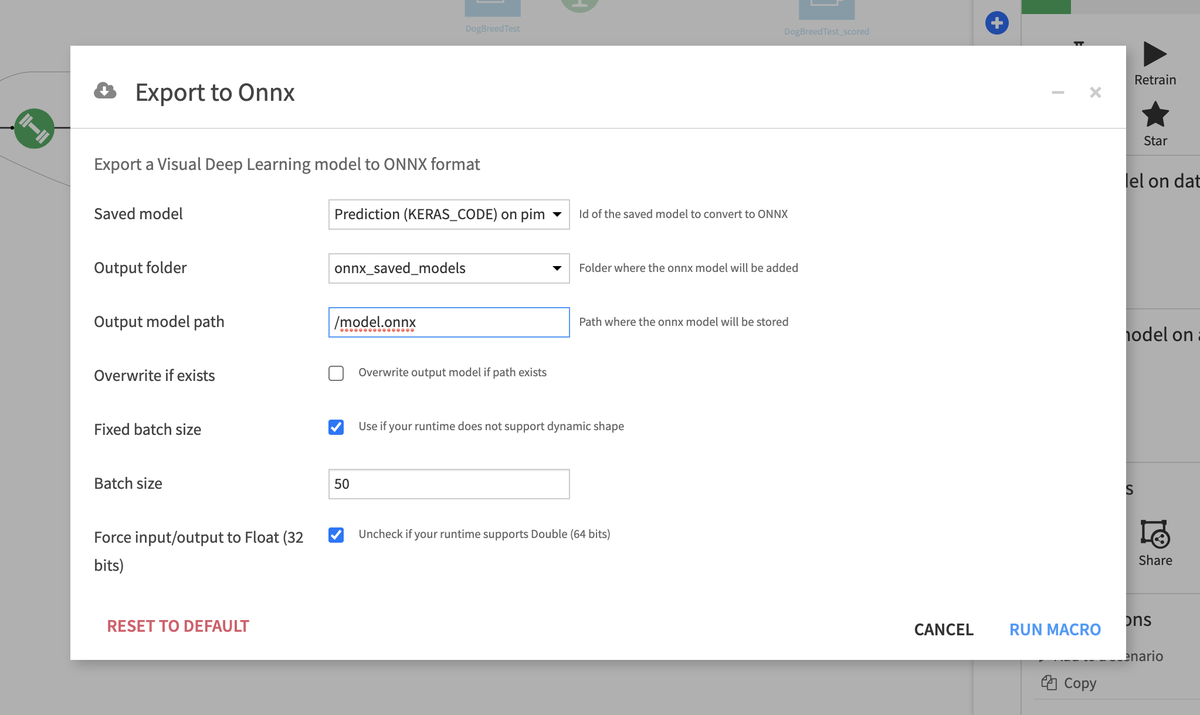
Click on RUN MACRO.
Click on Download ONNX model to trigger the download. The model has also been added to the output folder.
Available parameters
Saved model (Dataiku saved model): Visual Deep Learning model trained in Dataiku to convert.
Output folder (Dataiku managed folder): Folder where the ONNX model will be added.
Output model path (String): Path where the ONNX model will be stored.
Overwrite if exists (boolean): Whether the model should overwrite the existing file at same path (if it already exists).
Fixed batch size (boolean): Some runtimes do not support dynamic batch size and therefore the size should be specified during export.
Batch size (int) [optional]: Batch size of the model’s input.
Force input/output to Float (32 bits) (boolean): Some runtimes do not support
Double. Uncheck if your runtime supportsDouble.
Convert Keras .h5 model to ONNX macro
Procedure
Put a
.h5model file saved with Keras 2.0.6 or later usingmodel.save()into a Dataiku managed folder.Go to the Flow.
Click on the folder.
In the right panel in the
other actions section, click on Download as ONNX.Fill in the parameters (details below).
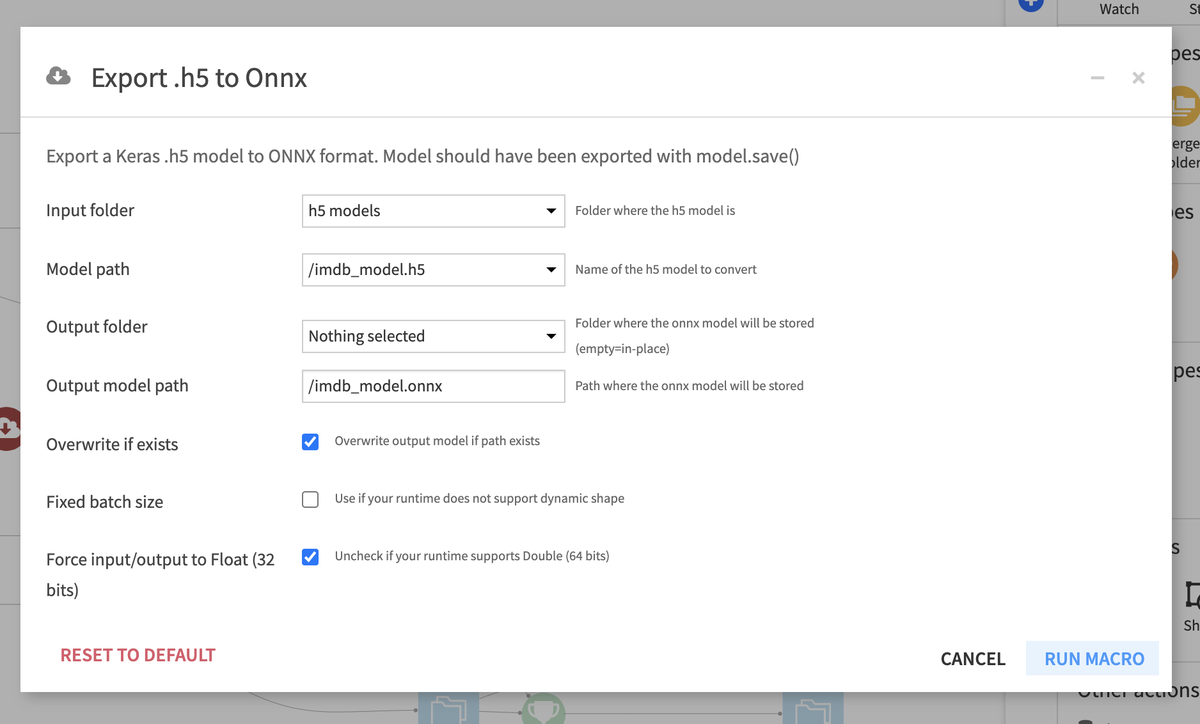
Click on RUN MACRO
Click on Download ONNX model to trigger the download. The model has also been added to the output folder
Available parameters
Input folder (Dataiku managed folder): Folder where the .h5 model is.
Model path (selection): Path to the .h5 model to convert.
Output folder (Dataiku managed folder) [optional]: Folder where the ONNX model will be added. If Output folder is left empty the model is added to the input folder.
Output model path (String): Path where the ONNX model will be stored.
Overwrite if exists (boolean): Whether the model should overwrite the existing file at same path (if it already exists).
Fixed batch size (boolean): Some runtimes do not support dynamic batch size and therefore the size should be specified during export.
Batch size (int) [optional]: Batch size of the model’s input
Force input/output to Float (32 bits) (boolean): Some runtimes do not support
Double. Uncheck if your runtime supportsDouble
The macros are also available in the Macro menu of a project.
How to use the Recipes ?
Convert saved model to ONNX recipe
Procedure
Train and save a Visual Deep Learning model in Dataiku.
Create a managed folder by clicking on + DATASET > Folder.
Go to the Flow.
Click on the + RECIPE > ONNX exporter button.
Click on the Convert Visual Deep Learning saved model option in the modal.
Choose the saved model you just trained as input and the folder you created as output.
Fill in the parameters on the recipe page (details below).
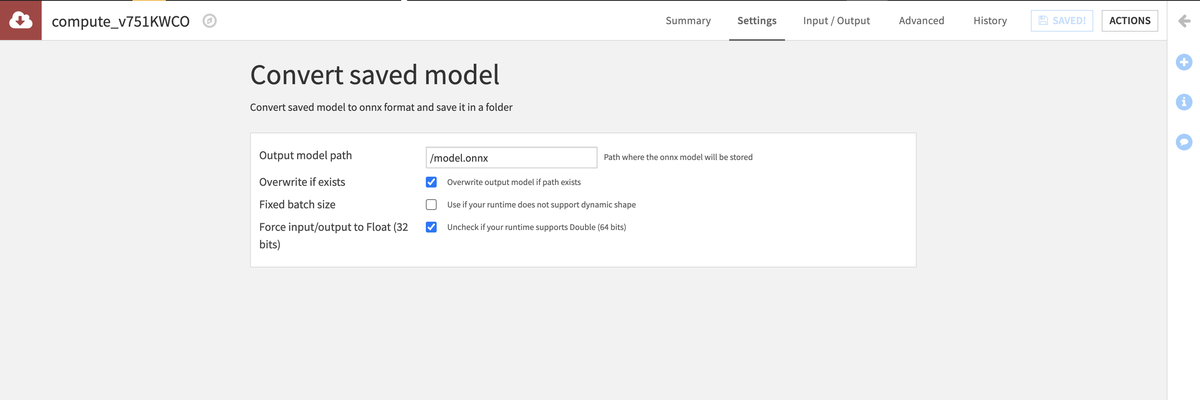
Run the recipe.
Open the output managed folder and download the ONNX file at the configured Output model path.
Available parameters
Output model path (String): Path where the ONNX model will be stored.
Overwrite if exists (boolean): Whether the model should overwrite the existing file at same path (if it already exists).
Fixed batch size (boolean): Some runtimes do not support dynamic batch size and therefore the size should be specified during export.
Batch size (int) [optional]: Batch size of the model’s input.
Force input/output to Float (32 bits) (boolean): Some runtimes do not support
Double. Uncheck if your runtime supportsDouble.
Convert Keras .h5 model to ONNX recipe
Procedure
Put a
.h5model file saved with Keras 2.0.6 or later usingmodel.save()into a Dataiku managed folder.Go to the Flow.
Click on the folder.
In the right panel in the Plugin recipes section, click on ONNX exporter.
Click on the Convert Keras .h5 model option in the modal
Select the input managed folder and a required output managed folder when creating the recipe.
Fill in the parameters on the recipe page (details below).
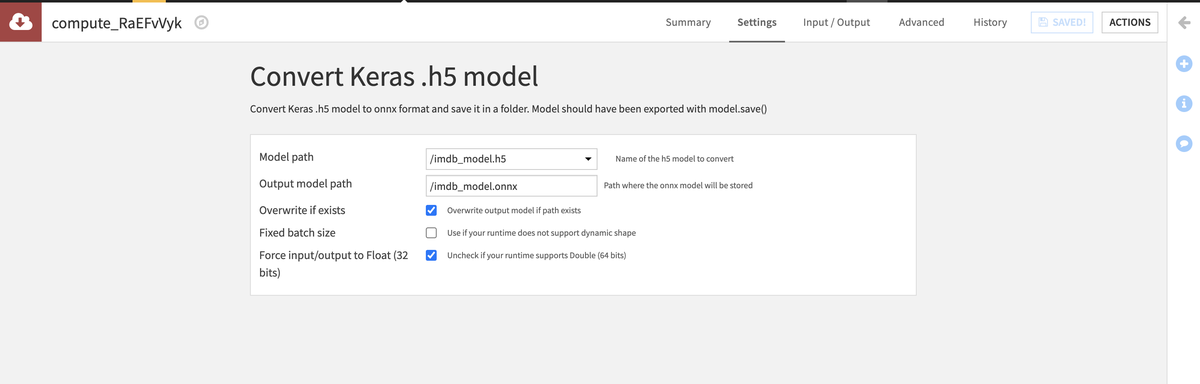
Run the recipe.
Open the output managed folder and download the ONNX file at the configured Output model path.
Available parameters
Model path (selection): Path to the .h5 model to convert
Output folder (Dataiku managed folder): Required recipe output folder where the ONNX model will be added.
Output model path (String): Path where the ONNX model will be stored
Overwrite if exists (boolean): Whether the model should overwrite the existing file at same path (if it already exists)
Fixed batch size (boolean): Some runtimes do not support dynamic batch size and therefore the size should be specified during export.
Batch size (int) [optional]: Batch size of the model’s input
Force input/output to Float (32 bits) (boolean): Some runtimes do not support
Double. Uncheck if your runtime supportsDouble