
OneDrive
You can read and write data from your OneDrive account. This capability is provided by the “OneDrive” plugin, which you need to install. Please see Installing plugins.
How to set up
From the Azure Portal, go to Azure Active Directory > App registrations create a new App (New registration). Set a name and a redirect URI pointing back to your DSS instance. It should follow this structure:
https://<<your DSS instance domain>>:<<your DSS instance port>>/dip/api/oauth2-callback.
Note
Unless your Dataiku instance is on a localhost, the URI has to point to a https secured server.
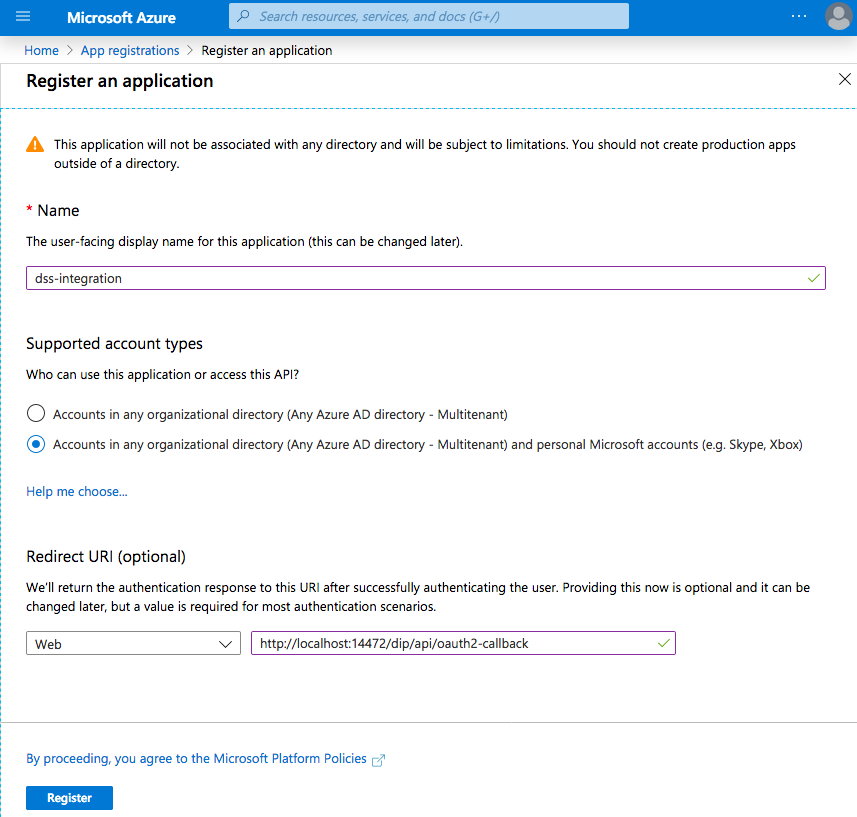
Click on the newly created app and copy the Application ID.
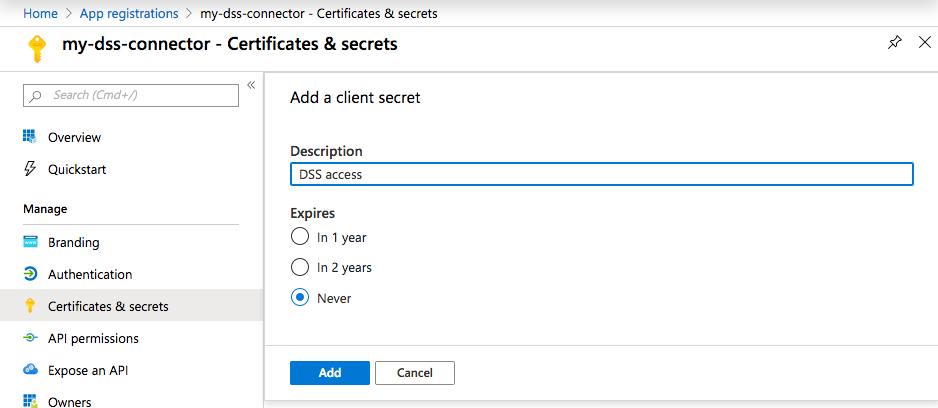
Go to the Certificates & secrets > New client secret tab.
Set a description, choose an expire date, and copy the value of the created secret.
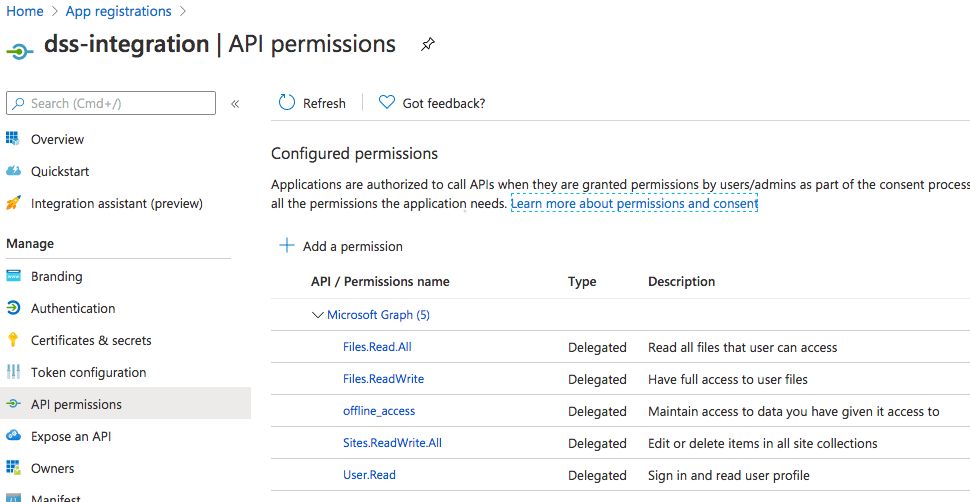
Go to API permissions > Add a permission > Microsoft APIs > Microsoft Graph > Delegated permissions.
Add offline_access, Files.Read.All and Files.ReadWrite.
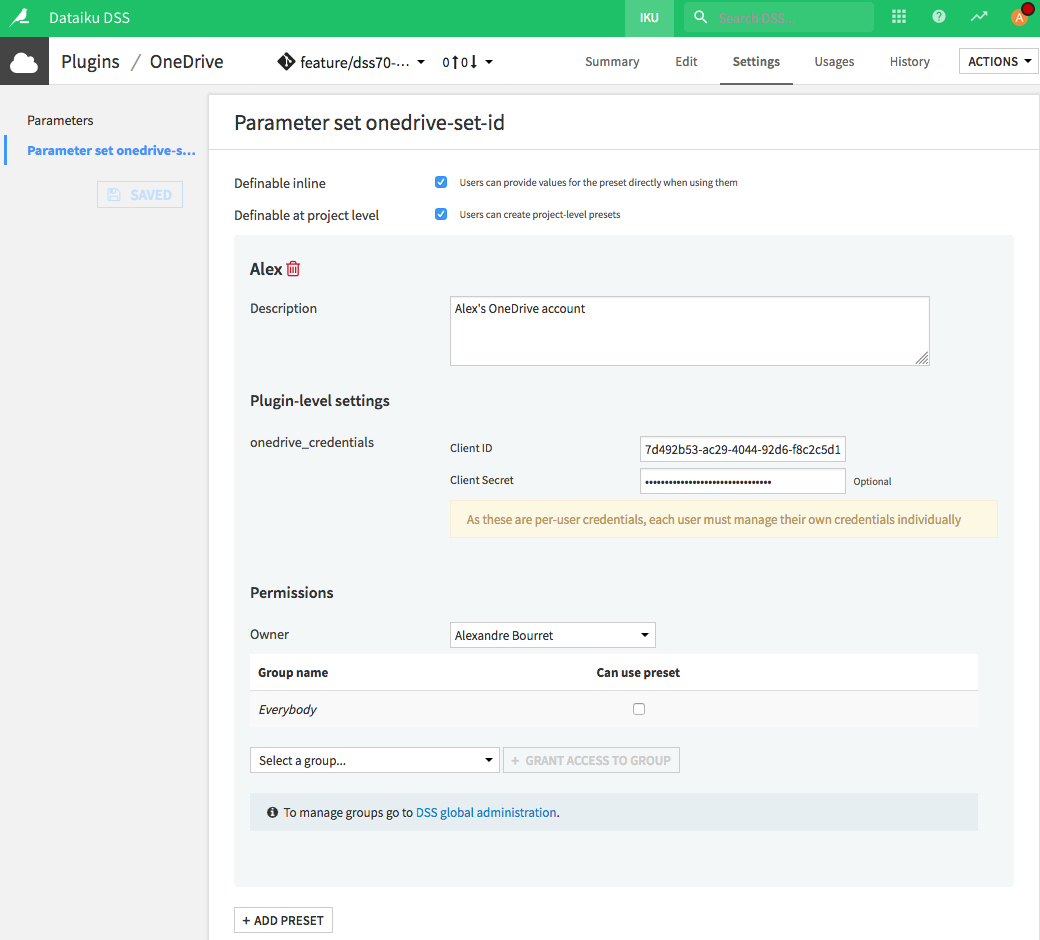
In Dataiku, go to Plugins > Installed > OneDrive > Settings > OneDrive OAuth details > + Add preset.
Set paste the App ID and App secret copied from step 2 into onedrive_credentials Client ID and Client Secret’s value and save the preset.
Go to Profile & settings > Credentials for your Dataiku account.
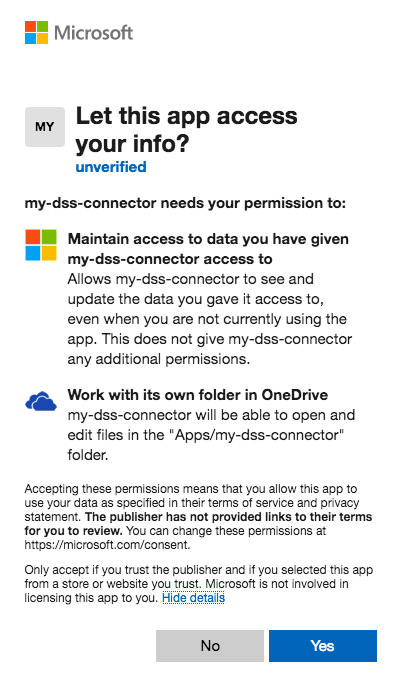
Click the edit button for the OneDrive preset you are configuring. This will redirect you to a Microsoft single sign on page.
Log in to the account if necessary click Yes
How to use
Read data from OneDrive
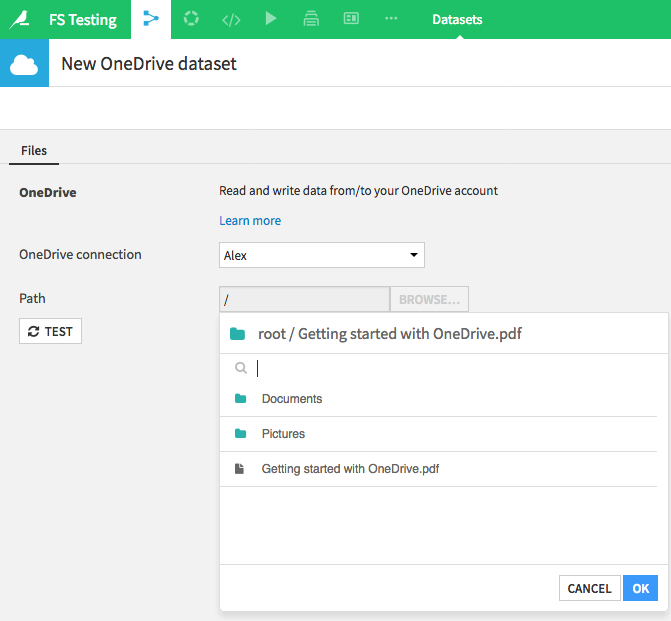
In your Dataiku project , from the Flow, select Dataset > OneDrive
Click OneDrive Filesystem
Pick the right preset, and browse to the document or folder you want to use as dataset.
Write data into OneDrive
In your Dataiku project, fromt the Flow, select Dataset > Folder
Choose OneDrive in the Store into parameter and click Create. An External code failed error may appear because you have not selected your Preset yet.
In the Settings tab of the folder, select your Preset in the OneDrive connection parameter, and save. You can now export your dataset into your newly created OneDrive managed folder.