
Audit trail on Dataiku Cloud
On Dataiku Cloud, audit logs will be automatically served through connections installed on your DSS, so you can leverage them directly in your instance.
Access API node queries
An Amazon S3 connection named “customer-audit-log” hosting your API Nodes logs queries is automatically added to your instance when you activate the API nodes. No further action is required.
To import your logs as a dataset in your Dataiku’s instance:
Add a Dataset > Cloud storages & Social > Amazon S3
Select the corresponding S3 connection and the path in bucket

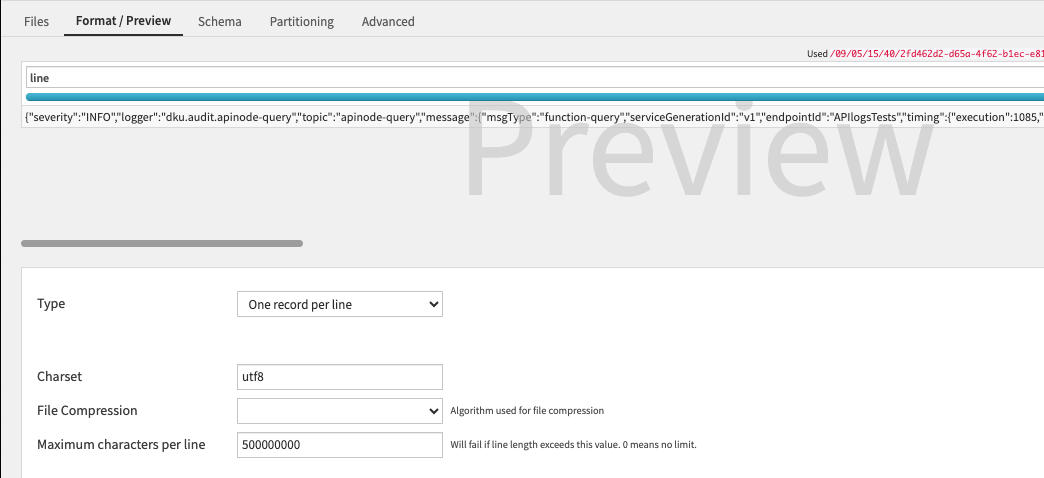
In the “Format / Preview” tab, select “One record per line” as Type and “utf8” as Charset
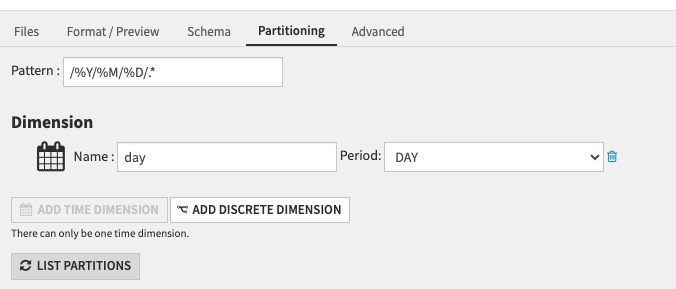
In the “Partitioning” tab, activate the partitioning: add a time dimension corresponding to the period you want to partition on, in the example below we partition per day
Create the Dataset and access it in the Flow
Access instances’ & Launchpad audit logs
This feature is only available for customers.
Activate the extension “Audit Logs” in your Launchpad to add two Amazon S3 connections named: * “dku-audit-log” hosting your audit trail accessible from your Dataiku instance. * “launchpad-data” hosting Launchpad audit trail
By default only space-administrators can access these connections, you can edit this behavior in the connection settings.
Instances audit logs
Once the connection is available, to import the logs as a dataset in your Dataiku’s instance:
Add a Dataset > Cloud storages & Social > Amazon S3
Select the “dku-audit-log” S3 connection and the path in bucket

In the “Format / Preview” tab, select “One record per line” as Type and “utf8” as Charset
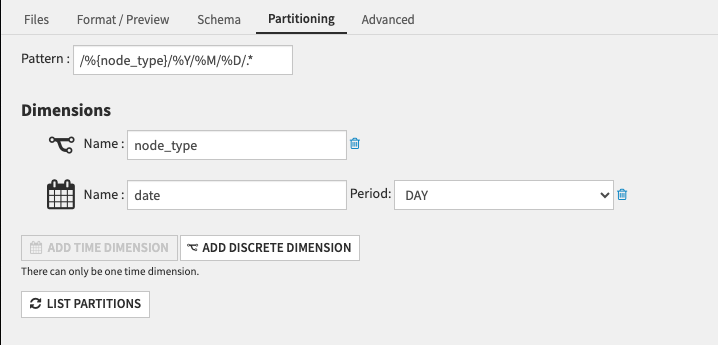
5. In the “Partitioning” tab, activate the partitioning: add a discrete dimension called “node_type”, and add a time dimension corresponding to the period you want to partition on, in the example below we partition per day
Create the Dataset and access it in the Flow
Launchpad audit logs
Add a Dataset > Cloud storages & Social > Amazon S3
Select the
launchpad-dataS3 connection and browse to set the “Path in bucket” to/audit-trail/If you want to partition the dataset, in the “Partitioning” tab, activate the partitioning and add a time dimension corresponding to the period you want to partition on. Fill in the Pattern
/%Y/%M/%D/.*for a daily partition. The dataset can also be hourly partitioned with the following pattern/%Y/%M/%D/%H.*Create the Dataset and access it in the Flow.