
Amazon Rekognition
You can use Amazon Rekognition APIs to analyze images in Dataiku.
This capability is provided by the Amazon Rekognition plugin, which you need to install.
You can:
Detect objects in images to obtain labels and draw bounding boxes.
Detect text in images.
Detect unsafe content (nudity, violence, etc.) in images.
Note that the Amazon Rekognition API is a paid service. You can consult the API pricing page to evaluate the future cost.
How to set up
If you are a Dataiku and AWS admin user, follow these configuration steps right after you install the plugin. If you are not an admin, you can forward this to your admin and scroll down to the How to use section.
Create an IAM user with the Amazon Rekognition policy – in AWS
Let’s assume that your AWS account has already been created and that you have full admin access. If not, please follow this guide.
Start by creating a dedicated IAM user to centralize access to the Rekognition API, or select an existing one. Next, you will need to attach a policy to this user following this documentation. We recommend using the “AmazonRekognitionFullAccess” managed policy.
Alternatively, you can create a custom IAM policy to allow “rekognition:*” actions. After completing this step, you will be able to retrieve the user Access key ID and Secret access key.
For an input folder stored on S3, the credentials used by the API configuration preset must also have permission to read the image objects. The S3 bucket must be in the same AWS region as the Rekognition API configuration.
Create an API configuration preset – in Dataiku
In Dataiku, open the Amazon Rekognition plugin, navigate to Settings > API configuration, and create your first preset.
Configure the preset – in Dataiku
Fill the Authentication settings
Copy-paste your Access key ID and Secret access key from the IAM user in the corresponding fields.
Set AWS region to a region that supports the required operation in this list.
Alternatively, you may leave the fields empty so that the credentials are ascertained from the server environment. If you choose this option, please follow this documentation on the server hosting Dataiku.
(Optional) Review the API QUOTA settings
The preset defaults to a Rate limit of 50 requests per Period of 1 second for each recipe activity.
AWS quotas depend on the API operation, region, and account. Set the preset limits to match your available quota. See Amazon Rekognition quotas for defaults and quota increase requests.
If multiple recipes run concurrently, divide the available quota among them. For example, with an available quota of 50 requests per second and 5 concurrent Dataiku activities, set Rate limit to 10 and Period to 1.
(Optional) Review the PARALLELIZATION settings
Set the Permissions of your preset.
You can declare yourself as Owner of this preset and make it available to everybody, or to a specific group of users.
Any user belonging to one of these groups on your Dataiku instance will be able to see and use this preset.
Your preset is now ready to be used.
Later, you (or another Dataiku admin) will be able to add more presets. This can be useful to segment plugin usage by user group. For instance, you can create a “Default” preset for everyone and a “High performance” one for your Marketing team.
How to use
Let’s assume that you have a Dataiku project with a folder containing JPG and PNG images. As an example, we will use a sample of the COCO dataset.. You can follow the same steps with your own images.
First, create an Amazon Rekognition recipe from the + RECIPE button or from the right panel if your folder is selected.
Object Detection & Labeling
Input
Folder with JPG/PNG images.
Output
Dataset with object labels for each image
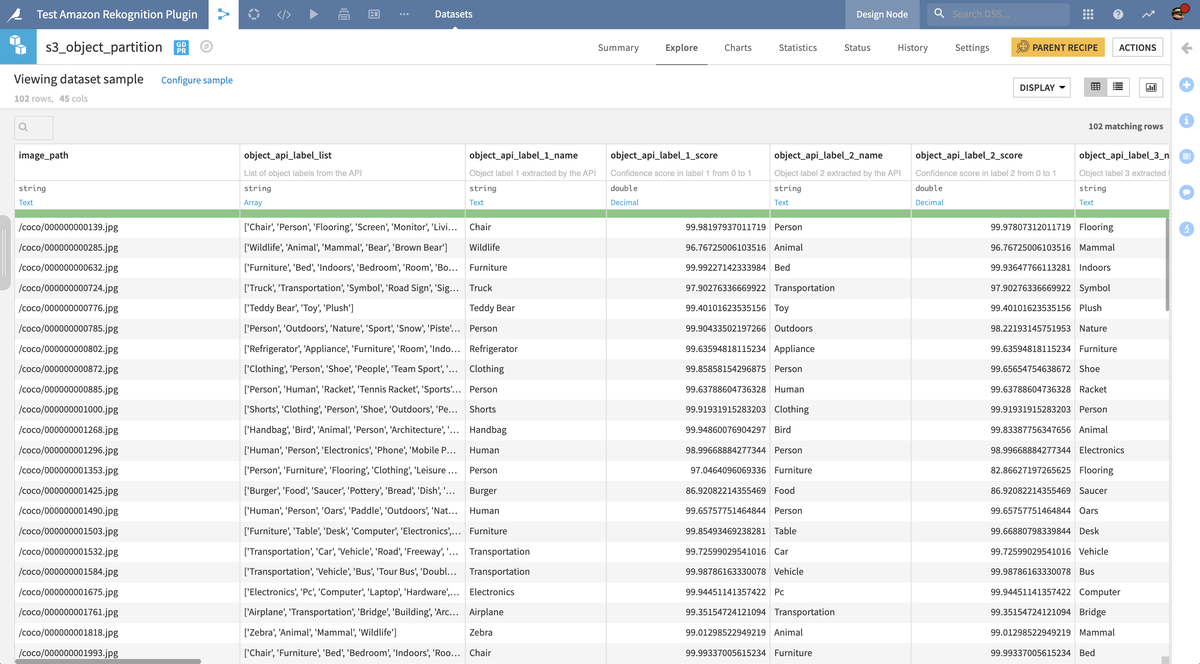
(Optional) Folder with object bounding boxes drawn on each image
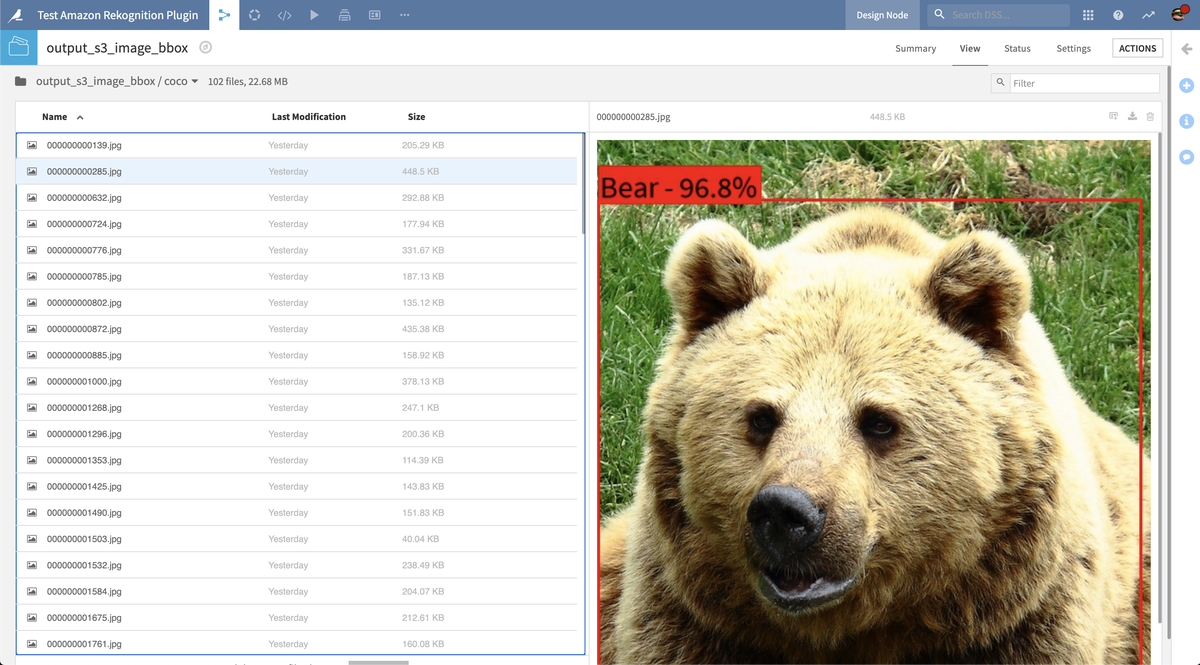
Note that including this folder will increase the recipe runtime, as each image needs to be re-downloaded to draw the bounding boxes after the API calls.
Settings
Review CONFIGURATION parameters
The API configuration preset parameter is automatically filled by the default one made available by your Dataiku admin. You may select another one if multiple presets have been created.
The Number of labels parameter limits the number of object labels returned by the API for each image.
(Optional) Activate the Expert mode to access ADVANCED parameters.
The Minimum score parameter allows you to filter out results with a low confidence score from the model. Default is 0.55 which is the AWS default value.
The Orientation correction parameter enables experimental detection and correction of image orientation. Note that it incurs an additional cost of one API call per image.
The Error handling parameter determines how the recipe will behave if the API returns an error:
In “Log” error handling, this error will be logged to the output but it will not cause the recipe to fail.
We do not recommend to change this parameter to “Fail” mode unless this is the desired behaviour.
Text detection
Input
Folder with JPG/PNG images.
Output
Dataset with detected text for each image.
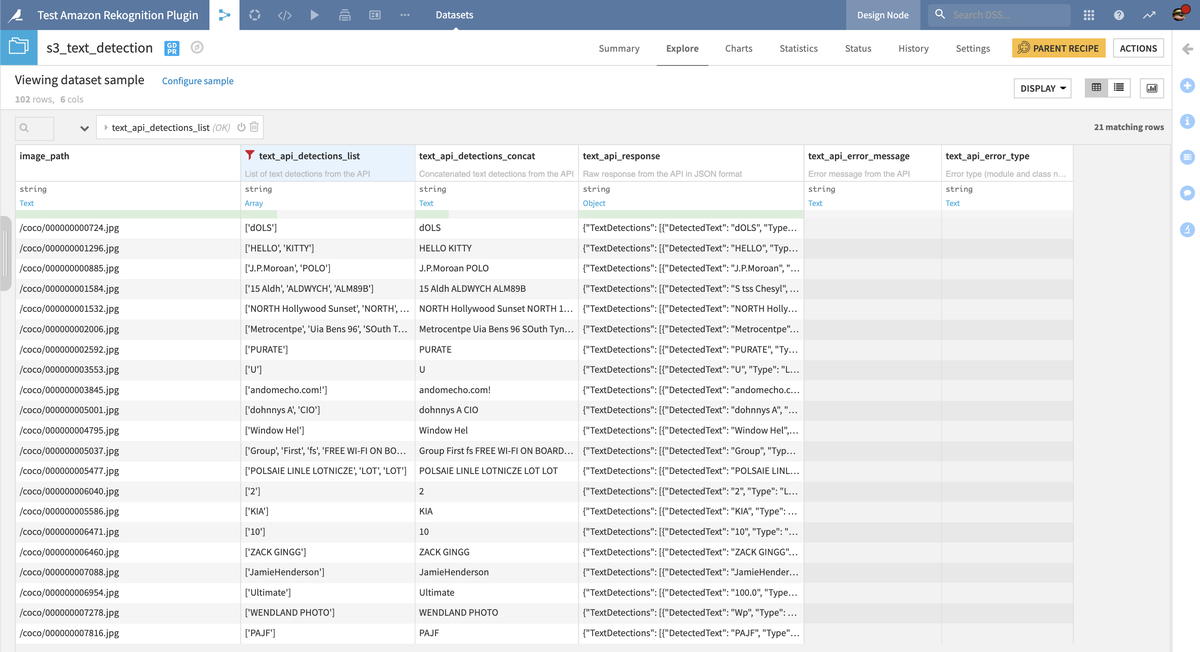
(Optional) Folder with text bounding boxes drawn on each image.
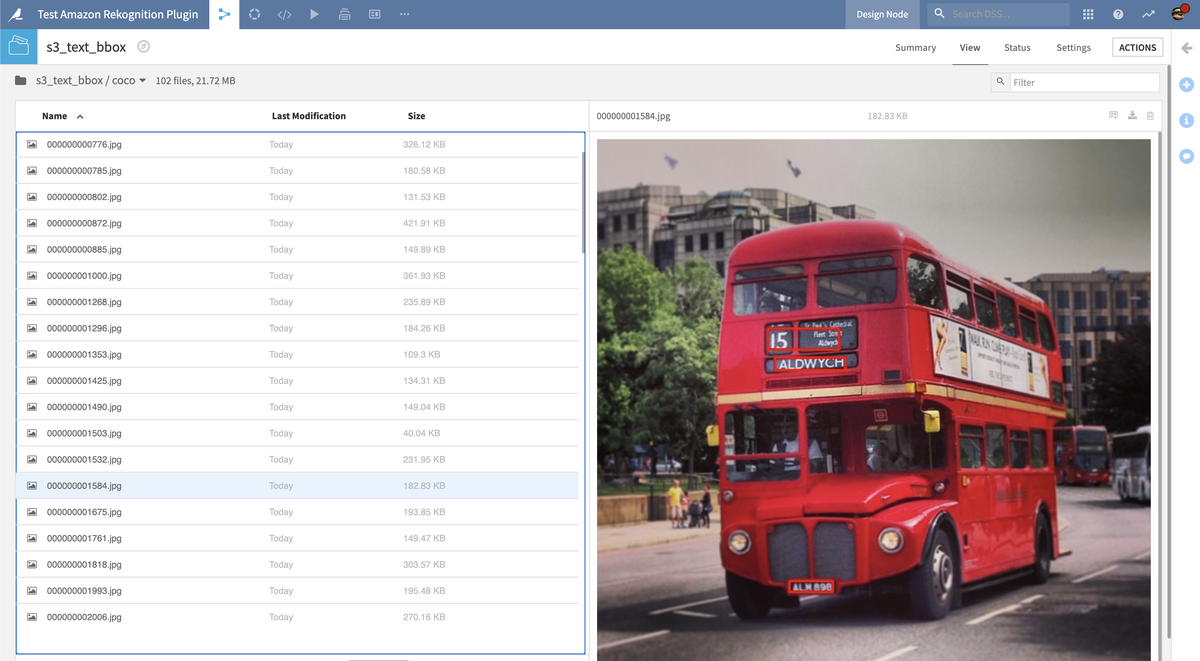
Note that including this folder will increase the recipe runtime, as each image needs to be re-downloaded to draw the bounding boxes after the API calls.
Settings
The parameters are the same as the Object Detection & Labeling recipe (see above), except that there is no Number of labels parameter and Minimum score defaults to 0.5.
The API detects up to 100 words per image. See the AWS text detection documentation for supported languages and limitations.
Unsafe Content Moderation
Input
Folder with JPG/PNG images.
Output
Dataset with moderation labels for each image.
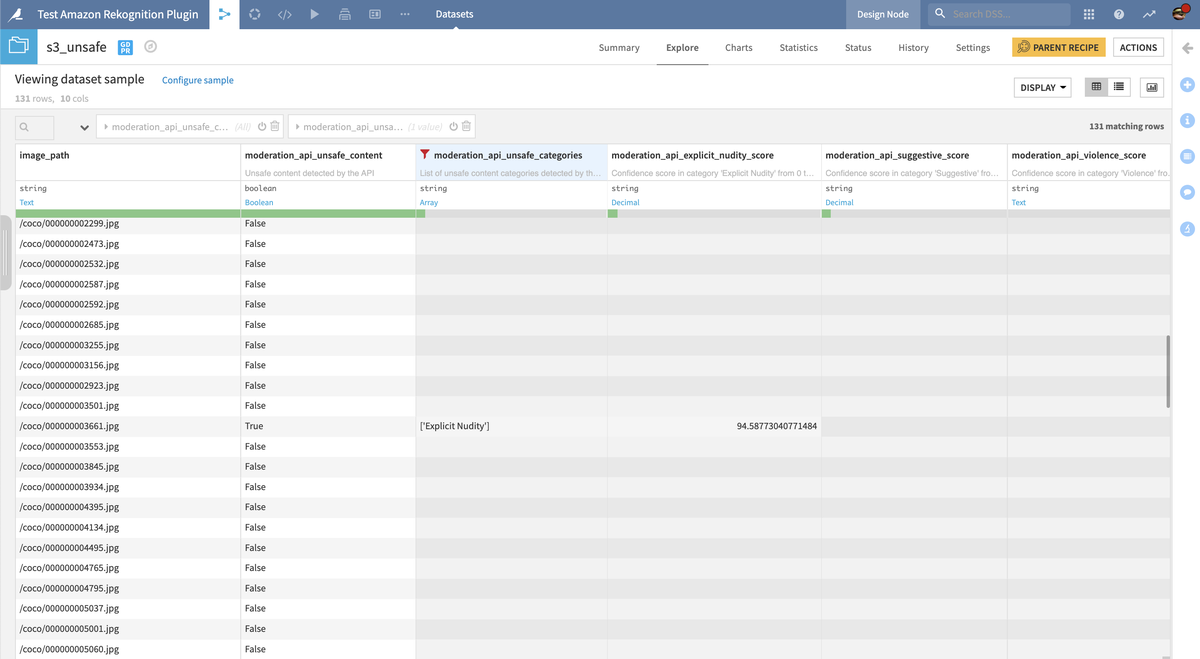
Settings
Select an API configuration preset. In Expert mode, you can configure Minimum score (default 0.5) and Error handling as described above. This recipe has no Number of labels or Orientation correction parameter.
Configure the content category parameters:
The Content category level parameter lets you choose which level of the Amazon Rekognition hierarchical taxonomy you want to use.
If you choose “Top-level (simple)”, the Top-level categories parameter lets you select which type of unsafe content you need to detect among 4 categories.
If you choose “Second-level (detailed)”, the Second-level categories parameter lets you select which type of unsafe content you need to detect among 18 detailed categories.