Google Cloud NLP
You can use the Google Cloud Natural Language APIs to:
Analyze the sentiment polarity of a text.
Recognize “real-world objects” (people, places, products, companies, etc.) in a text.
Classify text into 700+ predefined content categories.
This capability is provided by the Google Cloud NLP plugin, which you need to install. Please see Installing plugins.
Note that the Google Cloud Natural Language API is a paid service. You can consult the API pricing page to evaluate the future cost.
How to set up
If you are a Dataiku admin user, follow these configuration steps right after you install the plugin. If you are not an admin, you can forward this to your admin and scroll down to the How to use section.
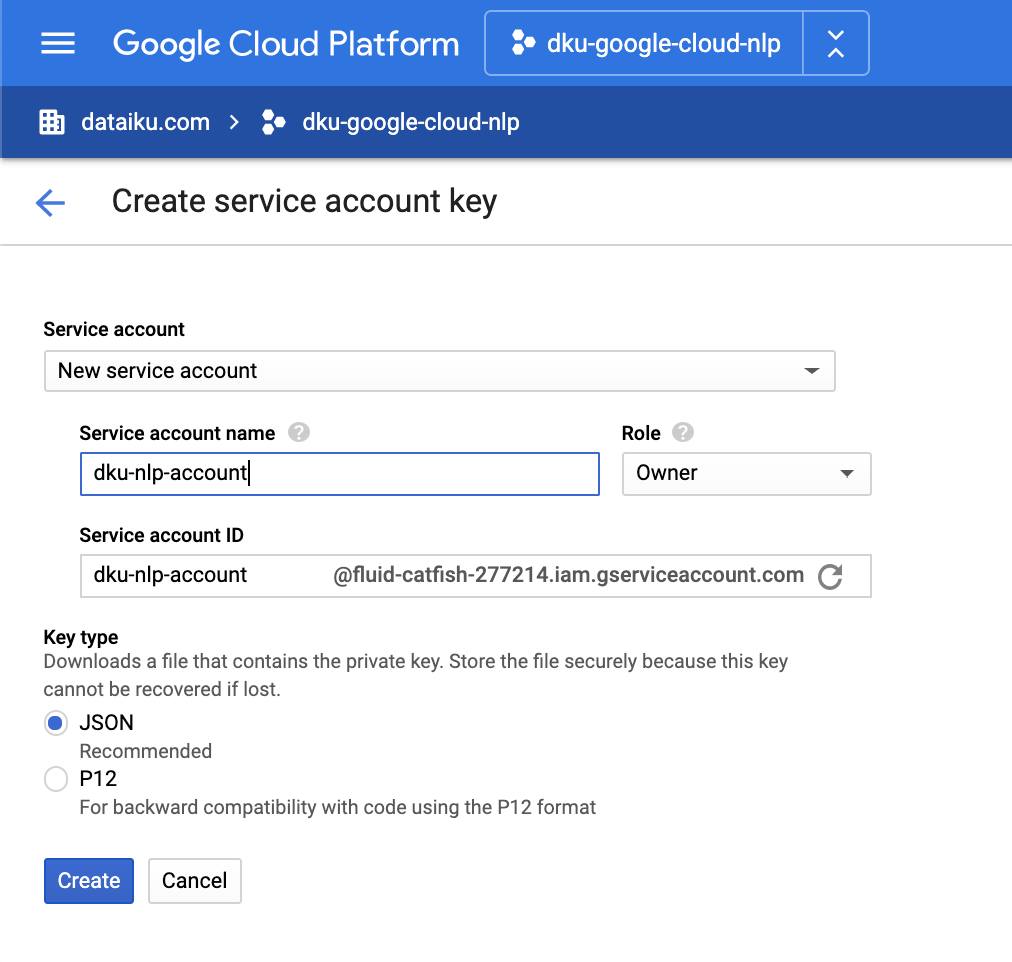
Get a service account key for the Natural Language API – in Google Cloud Console
You can follow the step-by-step instructions on this Google Cloud documentation page. Make sure that billing is activated and the Natural Language API is enabled on your Google Cloud project.
Follow the service account key creation instructions to download your service account key as a JSON file.
Create an API configuration preset – in Dataiku
In Dataiku, open the Google Cloud NLP plugin, navigate to Settings > API configuration, and create your first preset.
Configure the preset – in Dataiku
Fill the AUTHENTIFICATION settings.
Copy-paste the content of your service account key from Step 1 in the GCP service account key field. Make sure the key is valid JSON.
Alternatively, you may leave the field empty to use credentials from the server environment. Follow the Application Default Credentials documentation to configure these credentials.
(Optional) Review the API QUOTA settings.
The default API Quota settings ensure that one recipe calling the API will be throttled at 600 requests (Rate limit parameter) per minute (Period parameter).
In other words, after sending 600 requests, it will wait for 60 seconds, then send another 600, etc. This default quota is defined by Google. You can request a quota increase, as documented on this page.
If your quota is already at its maximum and if you envision that multiple recipes will run concurrently to call the API, you may need to decrease the Rate limit parameter. For instance, if you want to allow 10 concurrent Dataiku activities then you can set this parameter at 600/10 = 60.
(Optional) Review the PARALLELIZATION settings.
Set the Permissions of your preset.
You can declare yourself as Owner of this preset and make it available to everybody, or to a specific group of users.
Any user belonging to one of these groups on your Dataiku instance will be able to see and use this preset.
Your preset is now ready to be used.
Later, you (or another Dataiku admin) will be able to add more presets. This can be useful to segment plugin usage by user group. For instance, you can create a “Default” preset for everyone and a “High performance” one for your Marketing team, with separate billing for each team.
How to use
Let’s assume that you have a Dataiku project with a dataset containing text data. This text data must be stored in a dataset, inside a text column, with one row for each document.
As an example, we will use Twitter data from the @elonmusk account. You can follow the same steps with your own data.
To create your first recipe, navigate to the Flow, click on the + RECIPE button and access the Natural Language Processing menu. If your dataset is selected, you can directly find the plugin on the right panel.
Sentiment Analysis
Input
Dataset with a text column.
Output
Dataset retaining the input columns with additional columns
Sentiment score from the API in numerical format between -1 and 1.
Scaled sentiment score according to Sentiment scale parameter.
Magnitude score indicating emotion strength (both positive and negative) between 0 and +Inf.
Raw response from the API in JSON format.
Error message from the API if any, in Log error handling mode.
Error type (module and class name) if any, in Log error handling mode.
There are six additional columns in Log mode and four in Fail mode.
Settings
Fill INPUT PARAMETERS.
The Text column parameter is for your column containing text data.
By default, we specify the Language of this column as English.
You can change it to any of the supported languages listed here or choose “Auto-detect” if you have multiple languages.
Review CONFIGURATION parameters
The API configuration preset parameter is automatically filled by the default one made available by your Dataiku admin. You may select another one if multiple presets have been created.
The Sentiment scale parameter allows you to tune the type of categorical or numerical scaling which is applied to the sentiment score from the API. In all cases, you will get the raw sentiment score from -1 to 1 and an additional “magnitude” score from 0 to +∞ indicating the strength of emotion.
Negative / Positive
Negative / Neutral / Positive (default)
Highly negative / Negative / Neutral / Positive / Highly positive
Number between 0 and 1
Number between -1 and 1
(Optional) Review ADVANCED parameters
You can activate the Expert mode to access advanced parameters
The Error handling parameter determines how the recipe will behave if the API returns an error.
In “Log” error handling, this error will be logged to the output but it will not cause the recipe to fail.
In “Fail” mode, an API error causes the recipe to fail. Successful output does not include error columns.
Named Entity Recognition
Input
Dataset with a text column.
Output
Dataset retaining the input columns with additional columns
One column for each selected entity type, with a list of entities.
Raw response from the API in JSON format.
Error message from the API if any, in Log error handling mode.
Error type (module and class name) if any, in Log error handling mode.
Settings
Select the Text column, Language, and API configuration preset as for Sentiment Analysis, using a language supported by entity analysis. Instead of Sentiment scale, use Entity types to select multiple types from this list.
Under ADVANCED, activate Expert mode to access Error handling (as for Sentiment Analysis) and the following parameters:
Minimum salience: increase from 0 to 1 to filter results which are not relevant. Default is 0 so that no filtering is applied.
Entity sentiment: activate it to estimate sentiment for each entity. Entity sentiment supports English, Japanese, and Spanish only. Scores are available in the raw JSON response; the expanded entity-type columns contain entity names only. This may increase cost according to the API pricing page.
Text Classification
Input
Dataset with a text column containing English documents of at least 20 word tokens each.
Output
Dataset retaining the input columns with additional columns
Two columns for each content category ordered by confidence (see Number of categories parameter)
Name of the content category, among this list.
Classifier’s confidence in the category.
Raw response from the API in JSON format.
Error message from the API if any, in Log error handling mode.
Error type (module and class name) if any, in Log error handling mode.
Settings
Select the Text column and API configuration preset as for Sentiment Analysis. The Language parameter supports English only in this recipe.
Instead of Sentiment scale, use Number of categories to specify how many categories to extract in decreasing order of confidence score. The default value extracts the top three categories from the API results. If fewer categories are returned, the remaining category names are empty and their confidence scores are missing.
Under ADVANCED, activate Expert mode to access Error handling, with the same Log and Fail behavior as Sentiment Analysis.
Visualization
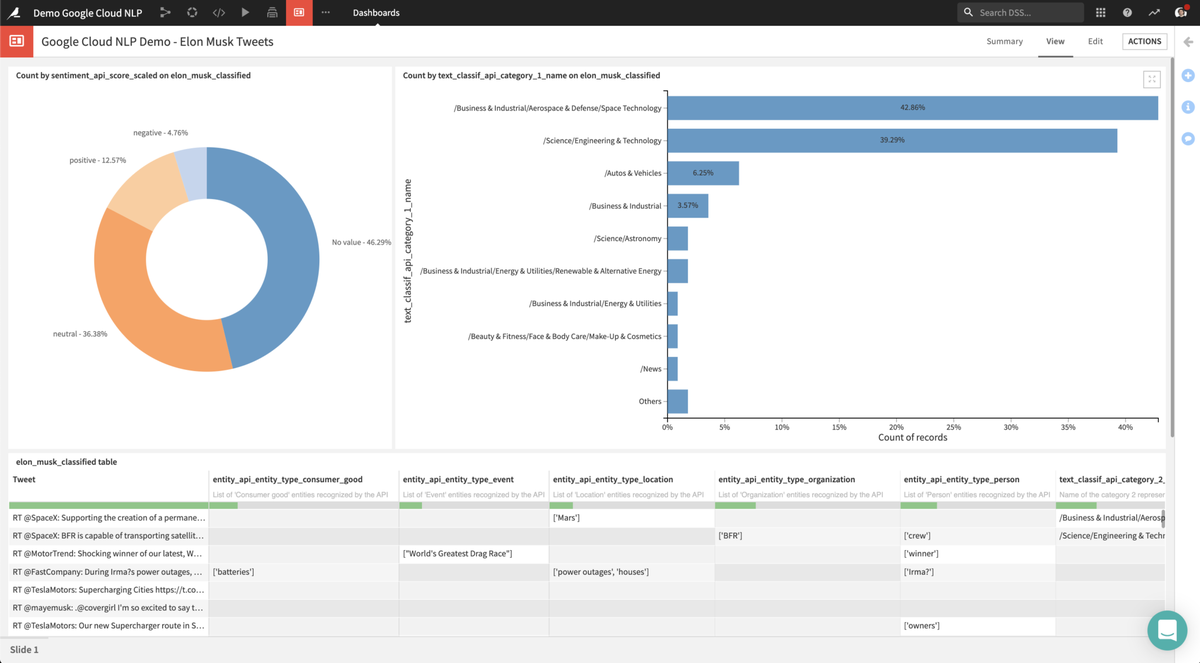
Thanks to the output datasets produced by the plugin, you can create charts to analyze results from the API. For instance, you can:
Analyze the distribution of sentiment scores.
Identify which entities are mentioned.
Understand what are the top categories.
After crafting these charts, you can share them with business users by publishing chart insights on a dashboard such as the one below: