
Manage blueprints and blueprint versions
Blueprints
A blueprint is a high-level container used to organize and store governance templates. It houses a collection of blueprint versions, allowing you to maintain multiple configurations within a single structure to meet specific regulatory or organizational needs.
For example, a single blueprint can host distinct versions for GxP Compliance (Life Sciences) or the EU AI Act (Risk Assessment).
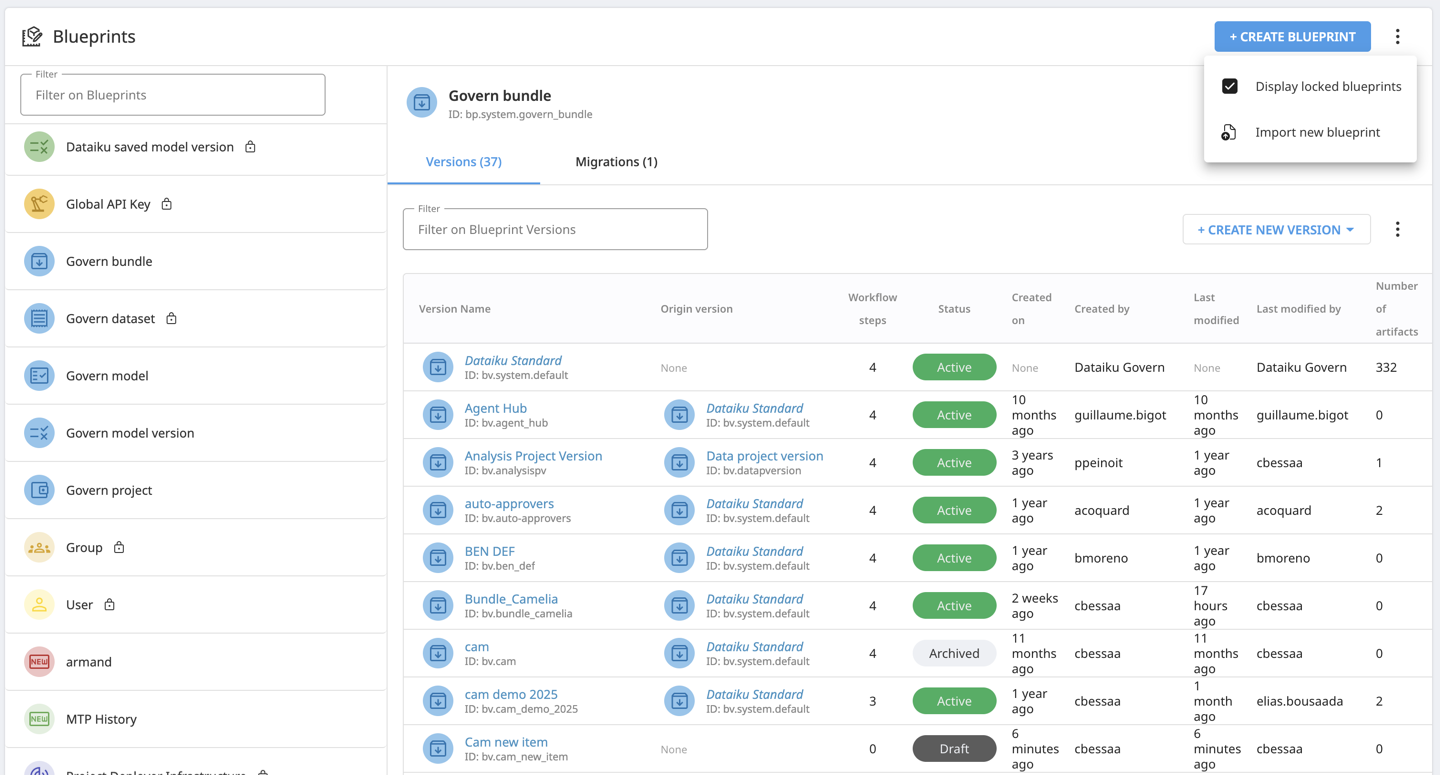
Types of blueprints
Dataiku Govern provides the following blueprint categories:
Govern blueprints define Standard Govern items such as business initiatives, projects, bundles, models, and model versions.
Dataiku blueprints embed information directly from Dataiku Design and Dataiku Deployer nodes to surface them within the Govern interface. To view them in the Blueprint Designer, open the options menu and select Display locked blueprints.
Custom blueprints let you create new types not related to Dataiku items or existing artifacts if you want to track specific workflows or external information.
Managing blueprints
Within the Govern node, you have full control over how blueprints are handled. The primary actions include:
Create: Build a new blueprint from scratch to fit your specific governance needs.
Import: Upload a JSON blueprint provided by Dataiku or exported from a different Govern node.
Export: Save a blueprint as a JSON file to share it or migrate it between environments.
Edit: Modify existing blueprints to update their structure or metadata as your requirements evolve.
Visual Identification: Assign a specific icon or image to a blueprint. This allows users to quickly identify the item type visually within the Govern interface.
Blueprint versions
A blueprint version is the template applied to Govern items. It defines the information collected for an item and how it is presented and governed through fields, page structure, views, workflows, sign-offs, actions, and hooks.
Lifecycle status
To maintain control over your governance standards, every version follows a specific lifecycle:
Status |
Description |
|---|---|
Draft |
The template is under construction and cannot be used yet. |
Active |
The version is live and available for use. Only active versions can be applied to items. |
Archived |
The template is retired; it remains in the system for historical items but cannot be applied to new ones. |
Warning
A blueprint version can be deleted only when it is not used by any item.
Create blueprint versions
Every blueprint version must reside within a parent blueprint. When creating a new version, you can choose from three primary paths depending on your needs:
Import (JSON): This is often the simplest method for quickly reusing a template. You can upload a blueprint version JSON file provided by Dataiku or one exported from another Govern node.
Fork: Duplicate an existing blueprint version to preserve built-in logic. You can choose to Fork a System Blueprint (built-in logic) or Fork a Custom Version (previously created).
Blank Template: Create a blueprint from scratch. This starts with a completely empty schema and is recommended for advanced users only.
Note
Best Practice: It is strongly advised to start by copying an existing blueprint version. Many versions contain “under-the-hood” fields and workflow steps such as sign-off logic or reviewer settings that are essential for Govern to function correctly.
Once a version is created, you can manage its lifecycle through several actions:
Edit: Refine the fields, layouts, or workflows.
Export: Save the version as a JSON file for backup or migration.
Handling changes via migrations
As your governance requirements evolve, you may need to move items from an older blueprint version to a newer one. This is handled through migrations.
Migrations allow you to map data elements (fields, statuses, etc.) from a source version to a target version, ensuring continuity. Within the Blueprint Designer, you can:
Script a new migration: Define the logic and field-mapping rules to transition items safely.
Edit a migration: Adjust existing mapping logic if requirements change during the transition period.
Remove a migration: Delete migration scripts that are no longer needed or were created in error.
You can learn how to apply a migration in this how-to.
Caution
A migration can target only versions of the same blueprint. It cannot migrate items between different blueprints.