
Dataiku AI Code Assistant
Dataiku AI Code Assistant provides enhancements to the coding experience in Jupyter Notebooks and Visual Studio Code (in Code Studio).
Setup
In order to start using the AI Code Assistant, the feature needs to be enabled by an admin. It also requires a connection to an LLM.
Go to Administration > Settings > AI Assistants
Make sure Enable AI Code Assistant is checked
Select which LLM connection to use as default
Click Save
Usage in Jupyter notebooks
There is only one step needed to enable AI Code Assistant in Jupyter notebooks:
Copy the following code in a cell and execute it:
%load_ext ai_code_assistant
Once the extension is loaded, several magic commands are available to interact with the assistant.
To display the extension’s built-in help from inside a notebook, run:
%aihelp
This displays the available commands and examples.
Ask for help
Use %aiask or %%aiask to ask a question. The response is displayed in the output of the cell.
%%aiask
How do I filter a pandas dataframe?
Use %aiwrite or %%aiwrite to ask for code generation. The assistant generates a new cell with the requested code.
%%aiwrite
Load the dataset.csv file and display the first 5 rows
Options for aiask and aiwrite:
-c,--continue: Continue the previous conversation.-np,--no-previous: Do not pass the last run cell as context.-df,--dataframes: Make the assistant aware of existing Pandas Dataframes (names and columns).--override-llm ID: Override the LLM connection ID (advanced).--temperature FLOAT: Set the LLM temperature (advanced).--max-tokens INT: Set the LLM max output tokens (advanced).
Explain code
Use %aiexplain or %%aiexplain to ask the assistant to explain the code in the cell.
%%aiexplain
df = df[df['value'] > 10]
Options for aiexplain:
-t,--terse: Make the explanation shorter.-v,--verbose: Make the explanation more detailed.--override-llm ID: Override the LLM connection ID (advanced).--temperature FLOAT: Set the LLM temperature (advanced).--max-tokens INT: Set the LLM max output tokens (advanced).
Usage in Visual Studio Code
Warning
This feature is Deprecated and will be removed in a future release. Dataiku AI Code Assistant for Visual Studio Code had very simple capabilities.
In Code Studios, you will get more AI-assisted coding through the integration with:
The AI Code Assistant extension requires a secured context (HTTPS) to be functional. Using a self-signed certificate may prevent the feature from being fully functional on all browsers.
To use AI Code Assistant in Visual Studio Code, an admin must enable it in the Code Studio Template:
Ensure the Install AI Code Assistant option is enabled in the Visual Code Studio block (it is enabled by default)
Rebuild the template and restart the Code Studio to apply changes
Features
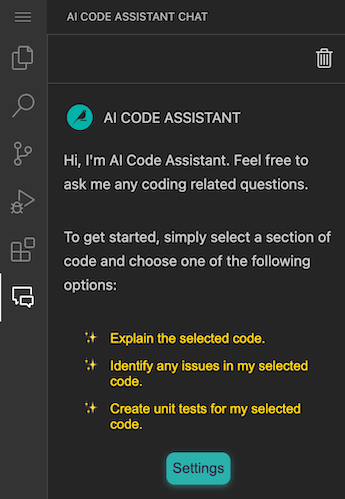
You will find a new side panel in VSCode to chat with the assistant.
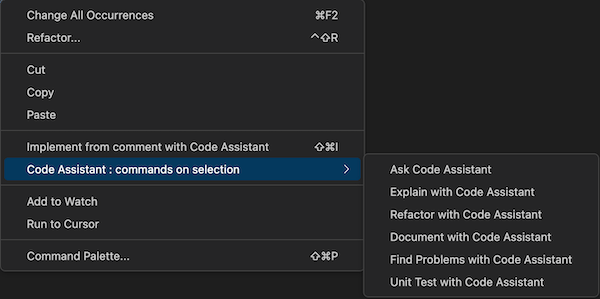
You will also have some new actions in the right-click menu when launched from inside a file (some are only available once you have made a selection in the file).
Settings
The extension settings can be configured in VSCode (File > Preferences > Settings, search for “Code Assistant”):
CodeAssistant.llmId: The LLM connection ID to use. Leave empty to use the instance default.
CodeAssistant.temperature: The temperature for the LLM (between 0 and 1). Default is 0.3.
CodeAssistant.maxTokens: The maximum number of tokens returned by each request. Default is 800.