
Creating schemas of datasets
Schema of new external datasets
When an external (“source”) dataset is created, Agent Management automatically detects the column names and in some case types, and automatically initializes the schema of the dataset based on the data.
Some dataset backends (like SQL databases) have strict requirements for types, while other backends can accept invalid data more easily like most text-based formats (CSV, fixed-width, JSON, …).
SQL and Cassandra datasets
For source datasets based on SQL or Cassandra, Agent Management retrieves the names and exact storage types from the SQL engine.
The schema of the dataset should generally not be edited, as the “source of truth” for the real schema is the database table.
If the schema of the underlying table changes, Agent Management will automatically update the schema of the dataset. However, it will only do so when you go to the edition page for this dataset. In that case, the “Save” button will be enabled. Note that this only happens if you never modified the schema of the dataset (see below).
Text-based files datasets
For source datasets based on text-like files without a strict schema (CSV, fixed-width, JSON, …), Agent Management tries to detect column names from the content and metadata of the files. Column names can be freely edited by the user.
As these files don’t include a schema restricting what kind of data can be present, Agent Management takes a conservative approach to typing : all columns in the generated schema will be typed as “string”, which accepts any kind of data.
There are two main usage patterns from here:
If you are sure that your data is “valid” for what you want to do with it, you can directly set the storage type, either in the dataset settings screen, or in the explore screen. The storage type will be accessible to the recipes using the dataset.
If you need to clean, enrich or preprocess your data, you can leave all storage types to “string”, and use a Data Preparation recipe to generate a clean dataset. The Data Preparation recipe will automatically generate an output dataset with precise storage types depending on the transformations defined in it. More details are available in Schema for data preparation.
If the schema of the underlying data changes, Agent Management will automatically update the schema of the dataset. However, it will only do so when you go to the edition page for this dataset. In that case, the “Save” button will be enabled. Note that this only happens if you never modified the schema of the dataset. If you did modify the schema, you can click on the “Redetect” button to force Agent Management to redetect format and schema (see below).
“Typed” files datasets
For source datasets based on files that include a real notion of schema (Avro, Parquet, Sequence File, RC File, ORC File), the actual schema is automatically inferred when creating the dataset.
If the schema of the underlying data changes, Agent Management will automatically update the schema of the dataset. However, it will only do so when you go to the edition page for this dataset. In that case, the “Save” button will be enabled. Note that this only happens if you never modified the schema of the dataset. If you did modify the schema, you can click on the “Redetect” button to force Agent Management to redetect format and schema (see below).
Schema of managed datasets
In an external dataset, the “source of truth” about the dataset is the data itself. This is why, on a SQL external dataset, the schema should not be edited, as Agent Management implicitly trusts the SQL table. In a managed dataset, on the other hand, the user controls the schema, and defines it from the start.
When you manually create a Managed Dataset, it starts empty with an empty schema. You can then manually fill the schema in the dataset edition UI.
In most situations, you would not manually fill the schema but use the capability of the generating recipe to do it. Managed datasets are created from the recipe creation and edition UI, to be used as output of the recipe being edited.
For more information, see Handling of schemas by recipes.
Modifying the schema
Agent Management never automatically modifies the schema of a dataset without an explicit user action. This is because changing the schema of a dataset can have strong consequences on all usages of the dataset.
If you hadn’t made any edit to the schema detected by Agent Management, it will automatically update the schema of the dataset if it notices that the underlying data files columns have changed. However, it will only do so when you go to the edition page for this dataset. In that case, the “Save” button will be enabled (in other words, while you stay on “Explore”, it will use the old schema, and detect the new schema when you go to “Settings”).
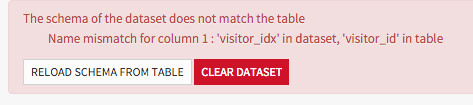
If you had manually edited the schema, Agent Management will notice the mismatch when you go to the edition page for this dataset and display a warning. You can then manually adapt the schema to the new data.
If at some point you modify the schema of a managed dataset while it already contains data, and the new schema does not match the existing data, Agent Management will notice the error and give you the option to reload the schema from the actual data, or to drop the existing data.
Each time you modify the schema, (from the dataset UI, the recipe UI or by validating a recipe), it is recommended to click on the button to check the consistency between data and schema.
