
Google Cloud Vision
You can use the Google Cloud Vision APIs in DSS recipes to analyze images and documents. This capability is provided by the Google Cloud Vision plugin, which you need to install.
These recipes let you:
Detect content (labels, objects, landmarks, logos, web entities) in images.
Detect text (typed or handwritten) in images and PDF/TIFF documents.
Detect unsafe content (nudity, violence, spoof, etc.) in images
Crop images automatically to a given aspect ratio
Note that the Google Cloud Vision API is a paid service. You can consult the API pricing page to evaluate the future cost.
How to set up
If you are a Dataiku and Google Cloud admin user, follow these configuration steps right after you install the plugin. If you are not an admin, you can forward this to your admin and scroll down to the How to use section.
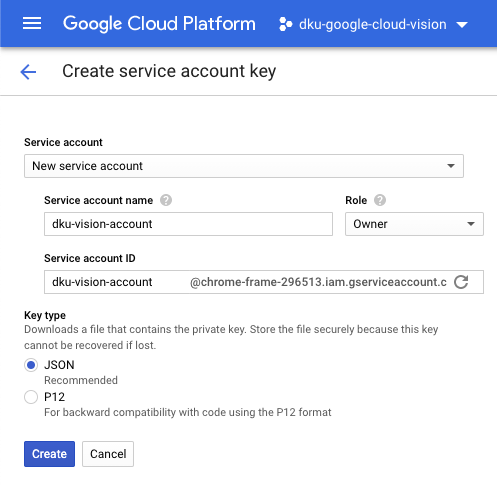
Get a service account key for the Vision API – in Google Cloud Console
You can follow the step-by-step instructions on this Google Cloud documentation page. Make sure that billing is activated on your Google Cloud project.
Follow the service account key creation instructions to download your service account key as a JSON file.
Create an API configuration preset – in Dataiku
In Dataiku, navigate to Plugin > Settings > API configuration and create your first preset.
Configure the preset – in Dataiku
Fill the AUTHENTIFICATION settings
Copy-paste the content of your service account key in the GCP service account key field. Make sure the key is valid JSON.
Alternatively, you may leave the field empty to use credentials from the server environment. If you choose this option, configure Application Default Credentials for the DSS server.
Leave the GCP continent field at Automatic if you do not need to control where your data will be processed.
Else, you can choose whether to perform all processing in the European Union or in the United States of America.
As of November 2020, per-continent processing is only available for the Text Detection API.
(Optional) Review the API QUOTA and PARALLELIZATION settings
The default API Quota settings ensure that one recipe calling the API will be throttled at 1800 requests (Rate limit parameter) per minute (Period parameter). In other words, after sending 1800 requests, it will wait for 60 seconds, then send another 1800, etc.
For image recipes, if your images are stored on Google Cloud Storage (GCS), each request to the API will contain up to 10 images by default (Batch size parameter).
In that case, the Rate limit parameter will be automatically divided by the Batch size to stay within your API quota.
The Batch size parameter is ignored if your images are not stored on GCS.
Text detection for documents processes one page per request and ignores the configured Batch size, regardless of folder storage.
You may need to decrease the Rate limit parameter if you envision that multiple recipes will run concurrently to call the API. For instance, if you want to allow 10 concurrent DSS activities, you can set this parameter at 1800/10 = 180 requests per minute.
The default Concurrency parameter means that 4 threads will call the API in parallel. This parallelization operates within the API Quota settings defined above. We do not recommend to change this default parameter unless your server has a much higher number of CPU cores.
Set the Permissions of your preset
You can declare yourself as Owner of this preset and make it available to everybody, or to a specific group of users.
Any user belonging to one of these groups on your Dataiku DSS instance will be able to see and use this preset.
Your preset is now ready to be used.
Later, you (or another Dataiku admin) will be able to add more presets. This can be useful to segment plugin usage by user group. For instance, you can create a “Default” preset for everyone and a “High performance” one for your Marketing team, with separate billing for each team.
How to use
Let’s assume that you have a Dataiku DSS project with folders containing images (JPG/PNG/GIF/BMP/WEBP/ICO) and documents (PDF/TIFF).
To create your first recipe, navigate to the Flow, click on the + RECIPE button and access the Computer Vision menu. If your folder is selected, you can directly find the plugin on the right panel.
Content Detection & Labeling
Input
Folder with JPG/PNG/GIF/BMP/WEBP/ICO images.
Output
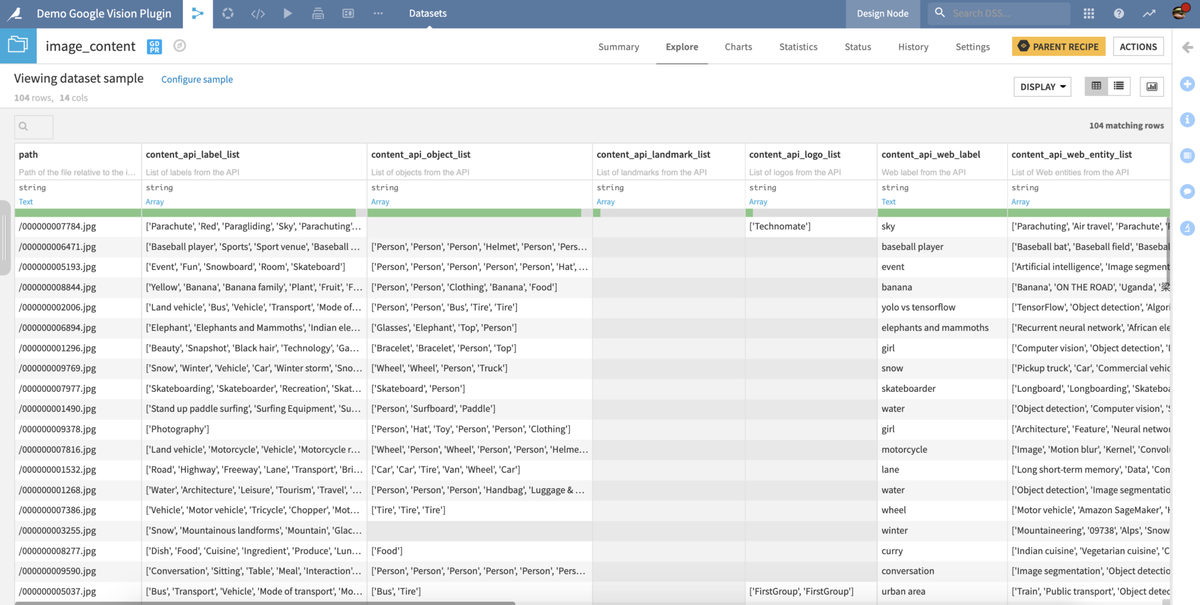
Dataset with content labels for each image.
(Optional) Folder with bounding boxes drawn on each image.
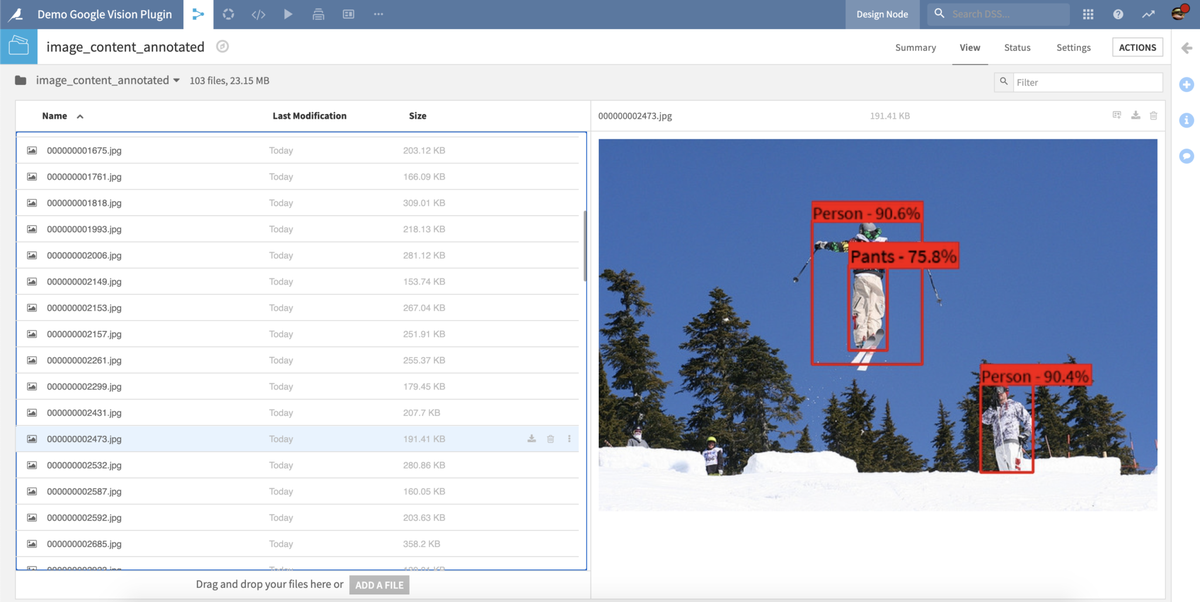
Note that including this folder will significantly increase the recipe runtime, as each image needs to be re-downloaded to draw the bounding boxes after the API calls.
Settings
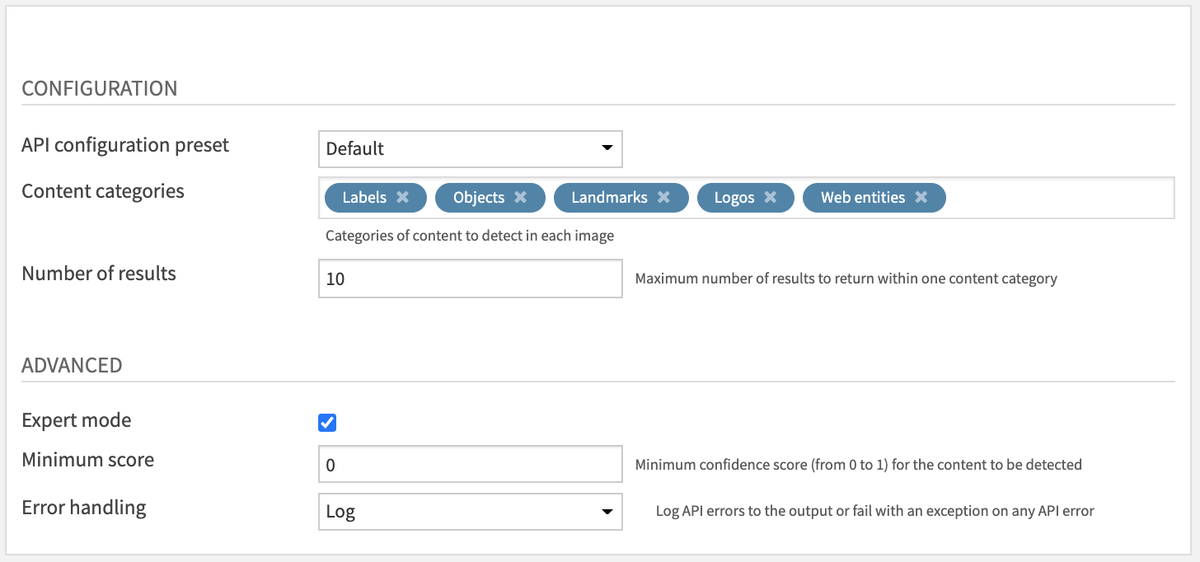
Content Detection & Labeling Recipe Settings
Review CONFIGURATION parameters
The API configuration preset parameter is automatically filled by the default one made available by your Dataiku admin. You may select another one if multiple presets have been created.
The Content categories parameter lets you choose which categories of content to detect in each image: Labels, Objects, Landmarks, Logos, or Web entities. Note that each category incurs its own cost.
The Number of results parameter limits the number of results within one content category.
(Optional) Review ADVANCED parameters
You can activate the Expert mode to access advanced parameters.
The Minimum score parameter sets the minimum confidence score for content bounding boxes. Default is 0. It does not filter scored labels, objects, landmarks, logos, or web entities in the output dataset.
The Error handling parameter determines how the recipe will behave if the API returns an error:
In “Log” error handling, this error will be logged to the output but it will not cause the recipe to fail.
We do not recommend to change this parameter to “Fail” mode unless this is the desired behaviour.
Text detection for images
Input
Folder with JPG/PNG/GIF/BMP/WEBP/ICO images.
Output
Dataset with detected text for each image.
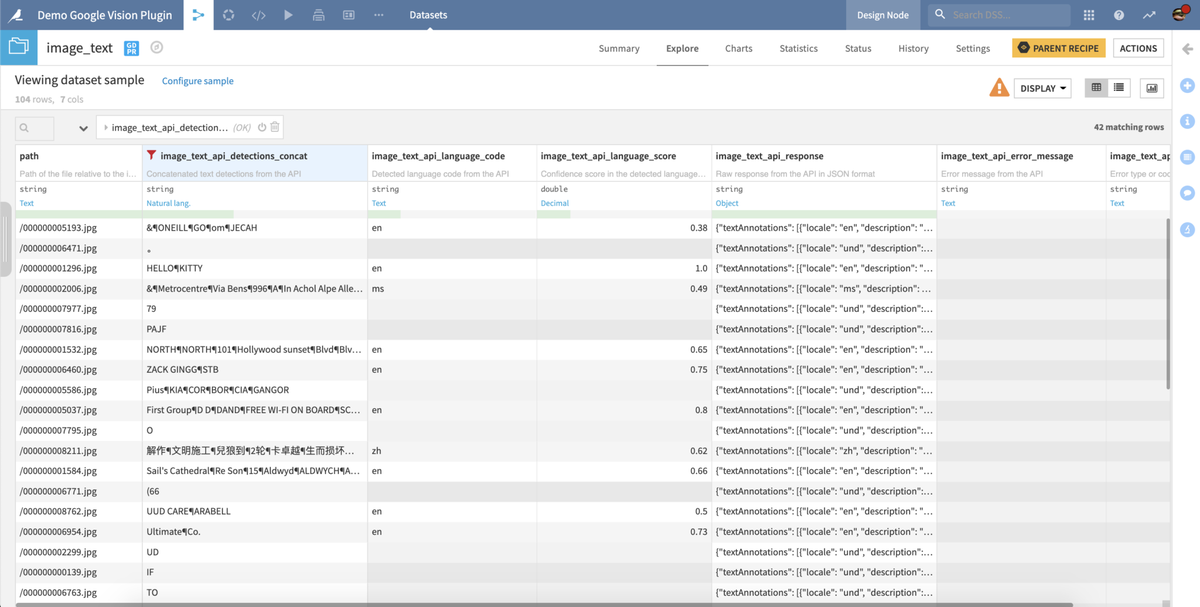
(Optional) Folder with text bounding boxes drawn on each image.
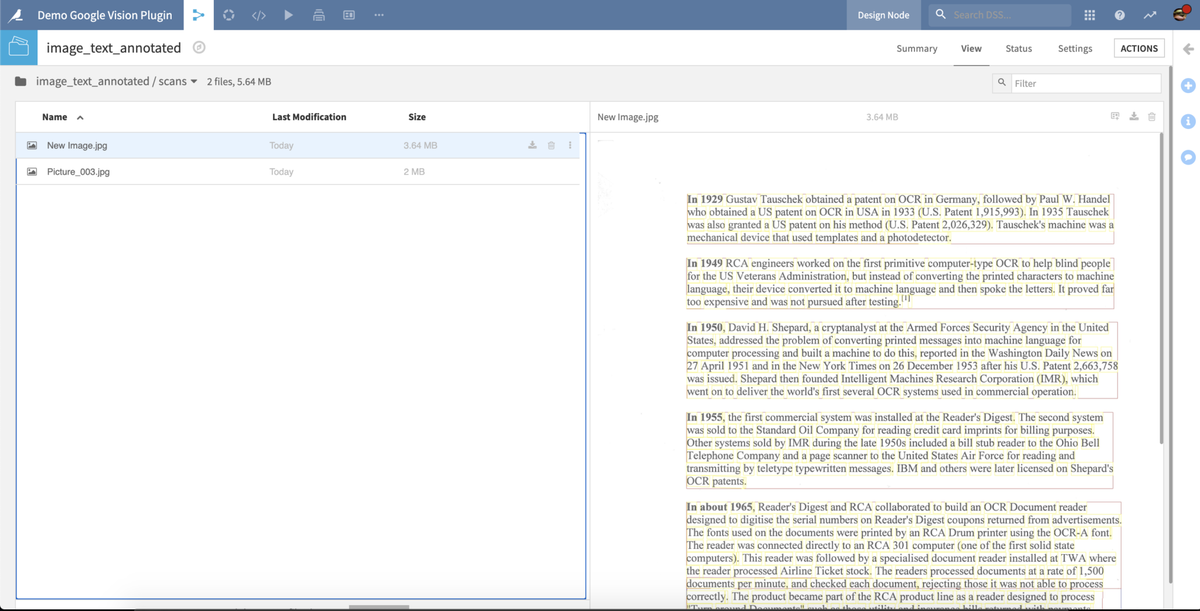
Note that including this folder will significantly increase the recipe runtime, as each image needs to be re-downloaded to draw the bounding boxes after the API calls.
Settings
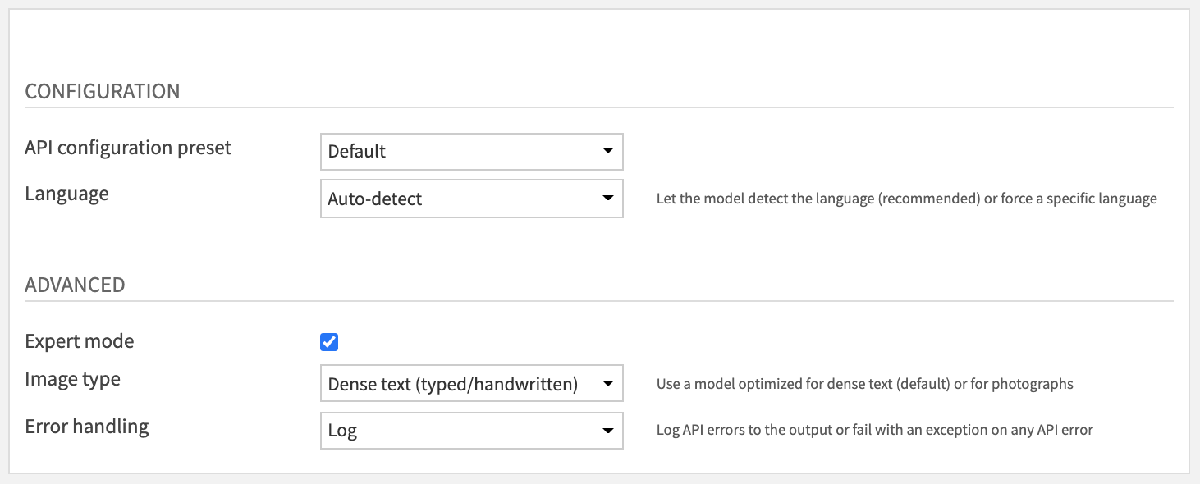
The API configuration preset and Error handling parameters are the same as the Content Detection & Labeling recipe (see above).
Additional parameters are available which are specific to this recipe:
The Language parameter lets you choose whether to let the model detect the language or to provide a hint using one of the languages available in the selector. See the Google Cloud language documentation for details about language hints.
The Image type parameter under Expert mode lets you choose whether the image contains dense text (typed/handwritten) or is a photograph with typed text. Default is dense text, which works well for scans of documents.
Text detection for documents
Input
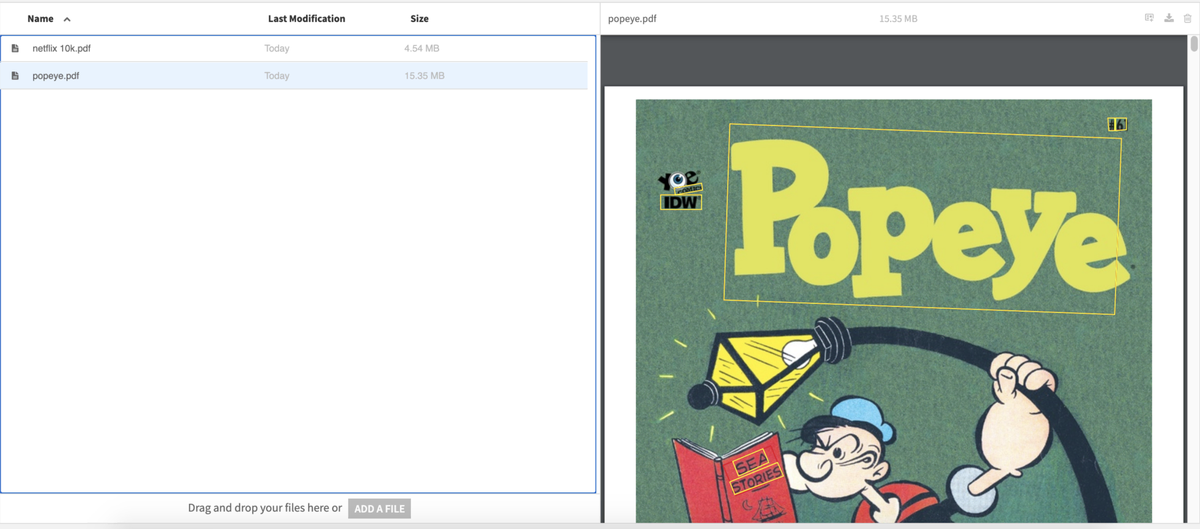
Folder with PDF/TIFF documents.
Output
Dataset with detected text for each document page, including the document path and page number.
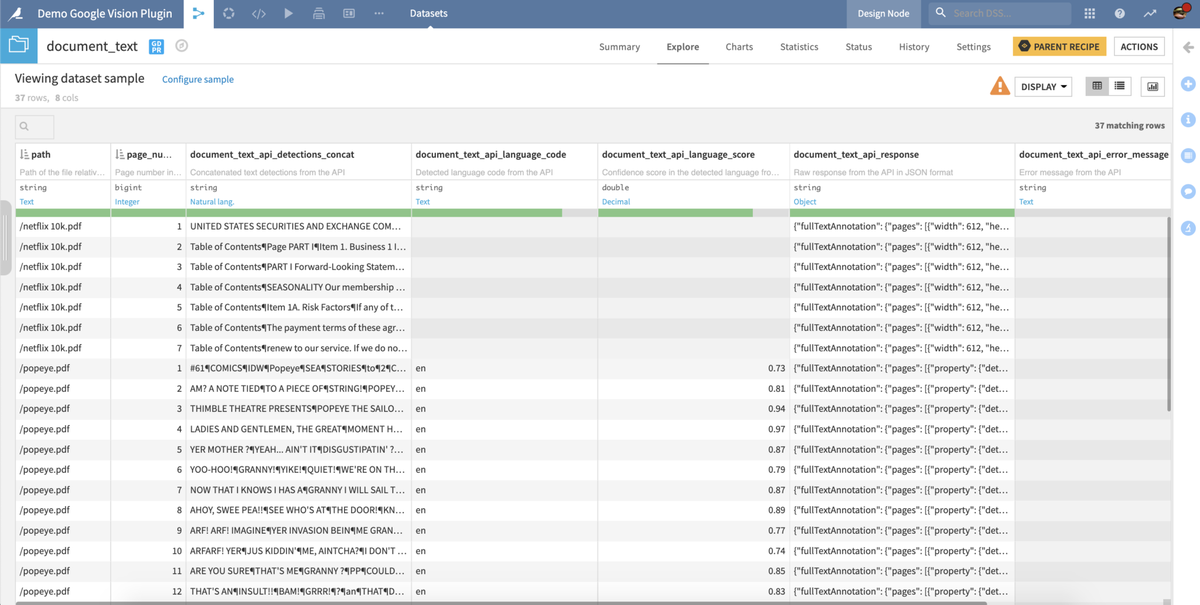
Folder with text bounding boxes drawn on each document.
Settings
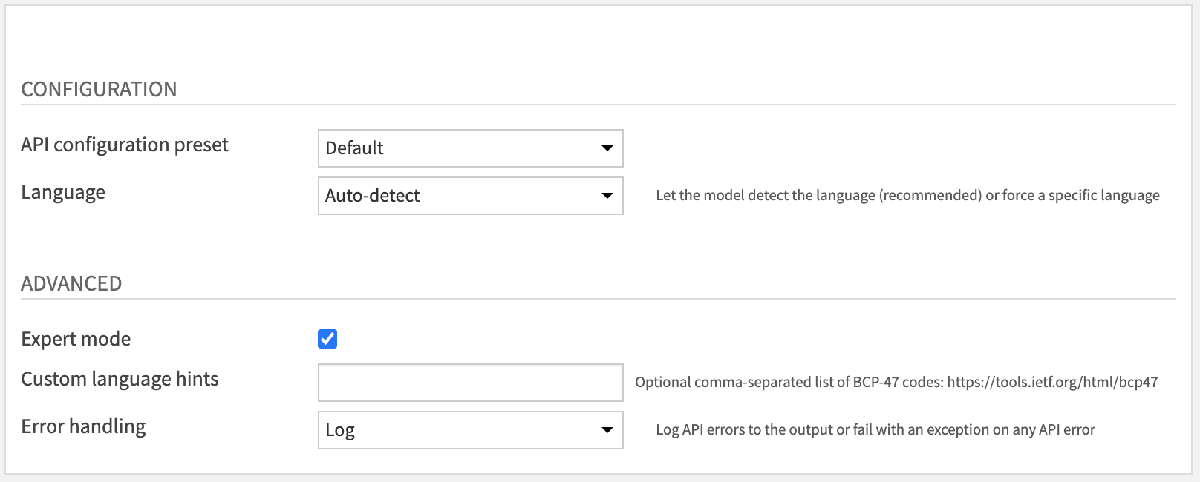
The API configuration preset, Language and Error handling parameters are the same as the Text detection for images recipe (see above).
The optional Custom language hints parameter under Expert mode lets you specify a comma-separated list of BCP-47 codes. For example, the language hint “en-t-i0-handwrit” specifies English language (en), transform extension singleton (t), input method engine transform extension code (i0), and handwriting transform code (handwrit). This can be interpreted as “English transformed from handwriting”.
Unsafe Content Moderation
Input
Folder with JPG/PNG/GIF/BMP/WEBP/ICO images.
Output
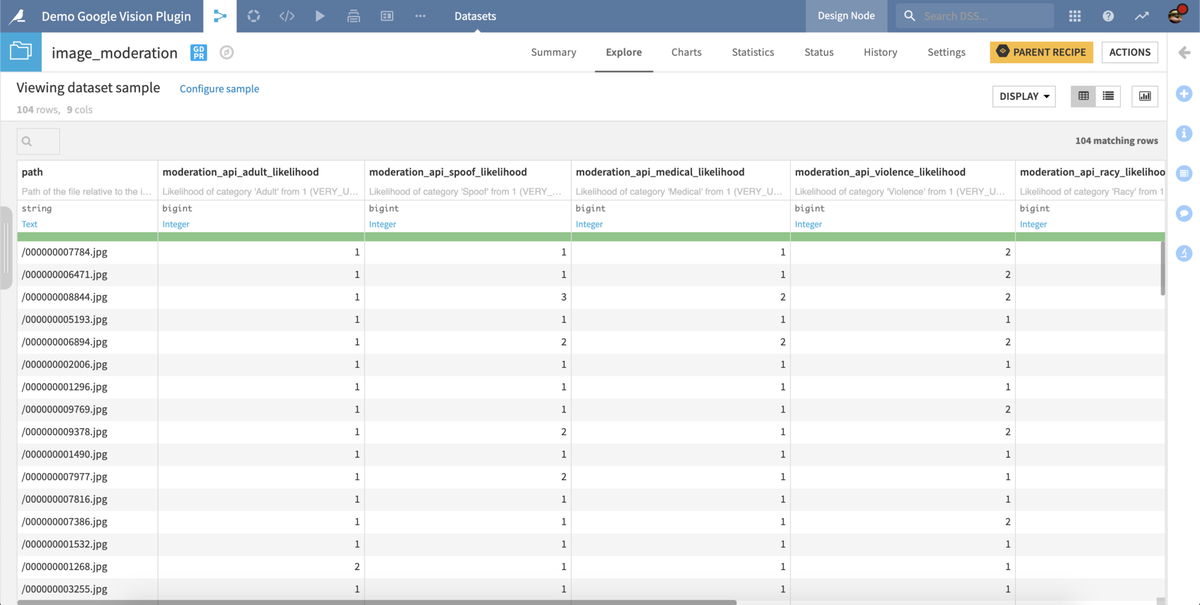
Dataset with moderation labels for each image.
Settings
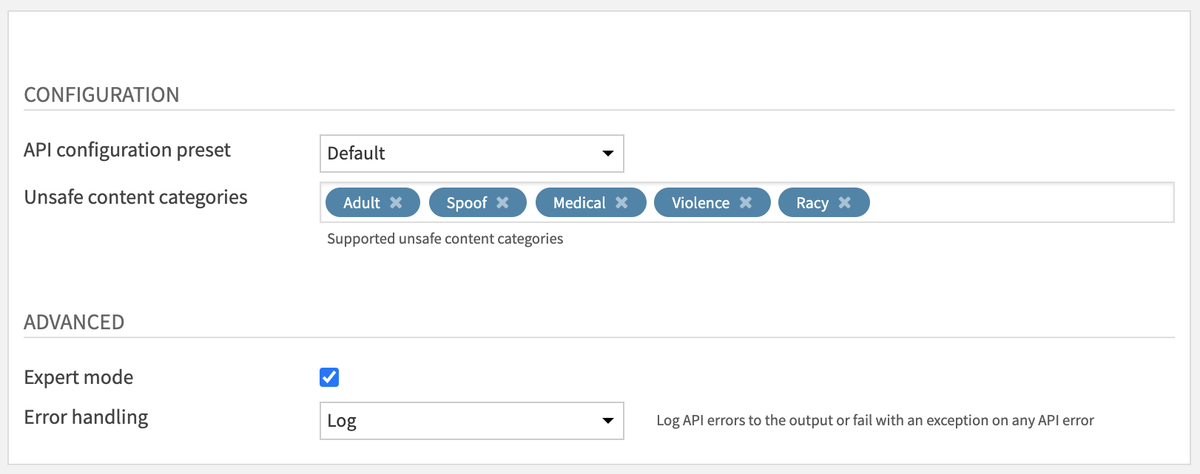
The API configuration preset parameter is the same as the Content Detection & Labeling recipe (see above).
The Unsafe content categories parameter lets you choose which moderation likelihoods appear in the output: Adult, Spoof, Medical, Violence, and Racy. These correspond to the Google SafeSearch categories.
Activate Expert mode to access Error handling, which is the same as the Content Detection & Labeling recipe.
Automatic Cropping
Input
Folder with JPG/PNG/GIF/BMP/WEBP/ICO images.
Output
Dataset with crop hints for each image.
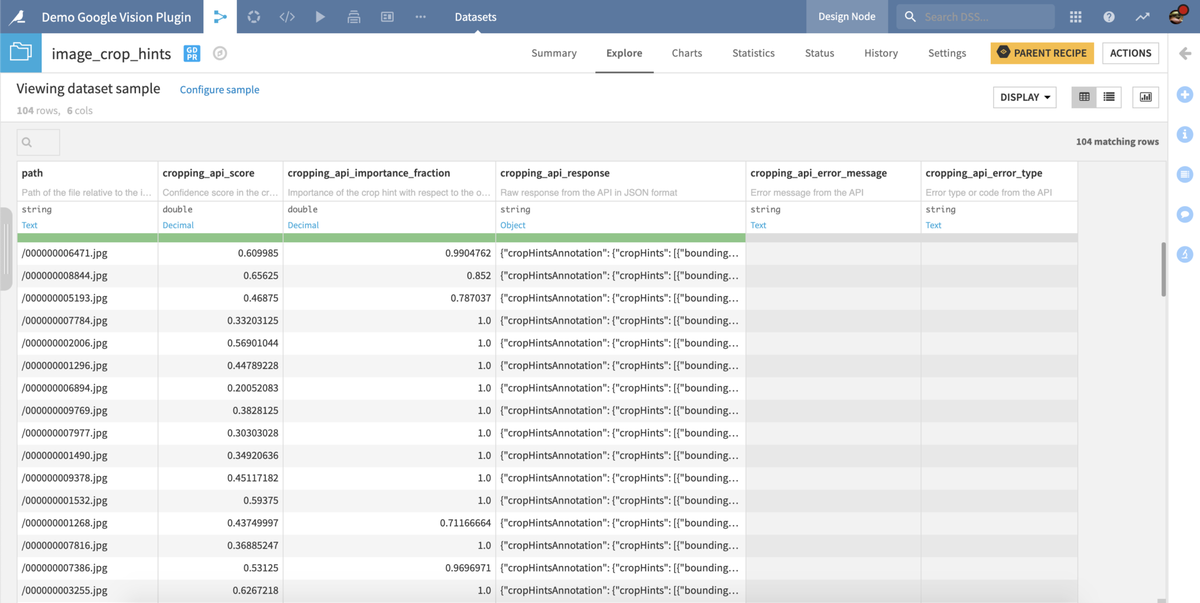
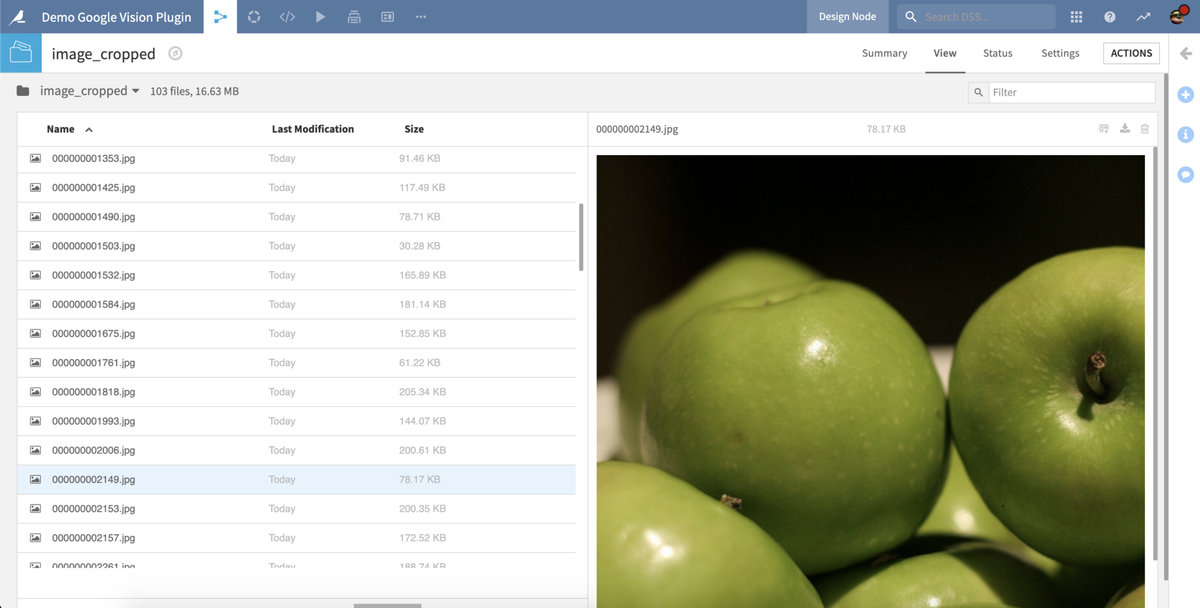
Folder with cropped images.
Settings
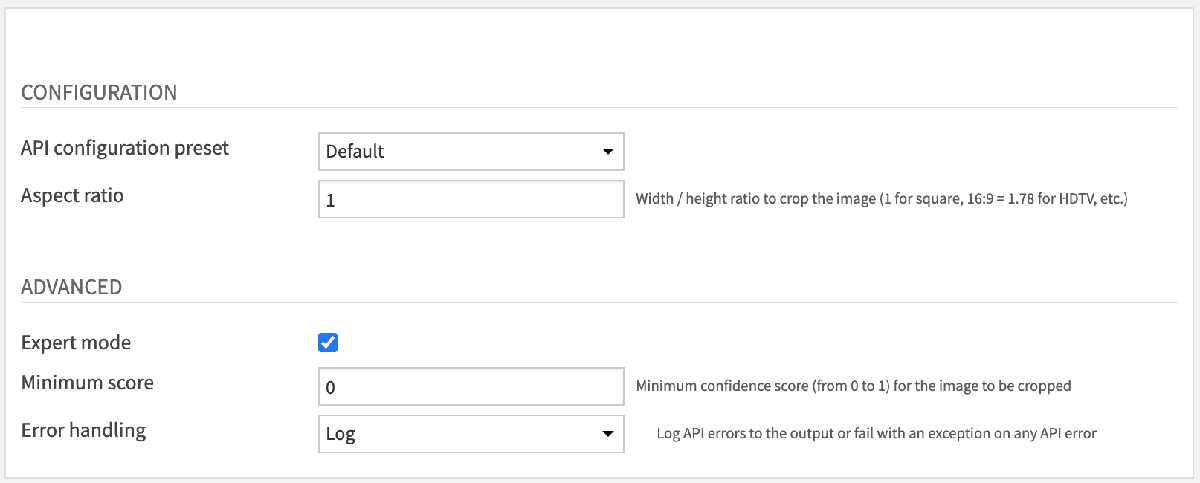
The API configuration preset parameter is the same as the Content Detection & Labeling recipe (see above).
The Aspect ratio parameter lets you choose the ratio of width to height to crop the image. Default is 1 for square, else you can choose 16/9 = 1.78 for a HDTV landscape, 9/16 = 0.56 for a portrait, etc.
Activate Expert mode to access the following parameters:
Minimum score sets the minimum confidence score for an image to be cropped. Default is 0. Images without a qualifying crop hint are saved unchanged; the dataset still includes any returned crop score and importance fraction.
Error handling is the same as the Content Detection & Labeling recipe (see above).