
Text generation
Local Hugging Face connections support text generation models. DSS provides presets for popular models, and you can also configure custom models by specifying their Hugging Face ID.
Preset catalog
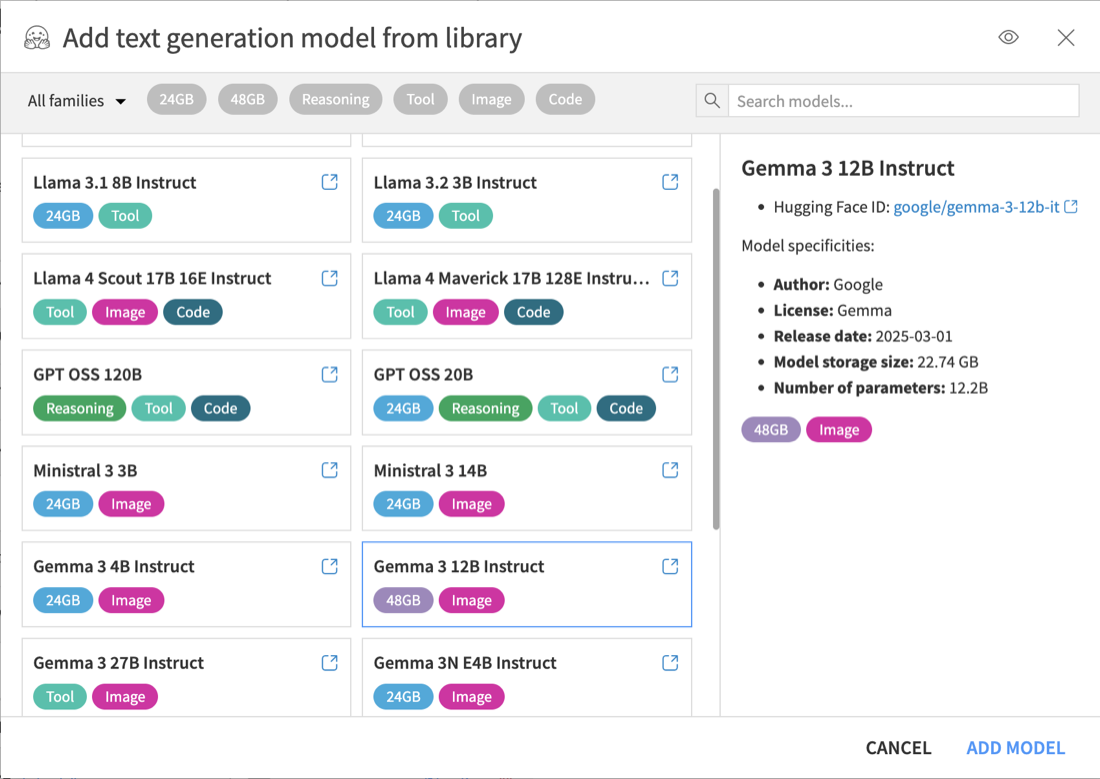
DSS provides presets for some common models and common hardware sizes (24GB and 48GB GPUs). This catalog is not exhaustive, and compatible Hugging Face models can always be configured manually.
Presets include default settings chosen to fit the target hardware. This can include a reduced context length on smaller GPUs. These settings are only defaults and can be adjusted after the model is created.
Some presets are tagged with capability labels such as Reasoning, Image, and Tool. These labels indicate capabilities supported out of the box with the preset configuration. If a label is absent, it means that the capability has not been tested with that preset, but it may work with additional configuration.
In the Text Generation section of the connection, click Add model from preset to import a preset from the catalog. If the model is not in the catalog, or if you want to configure a compatible Hugging Face model manually, click Add a custom model.
Once the model is configured, click Save.
Compatibility
DSS leverages vLLM, a high-performance inference engine optimized for running large-scale language models on NVIDIA GPUs.
Before adding a custom model, ensure that the model meets the following requirements:
The model needs to use the standard HuggingFace or Mistral-specific configuration format
For example, google/gemma-4-31B-it uses the standard HuggingFace configuration format, while mistralai/Mistral-Small-4-119B-2603-NVFP4 uses a Mistral-specific configuration format. Both are supported.
The model architecture must be supported by the installed vLLM version
For models in the standard HuggingFace format, the model architecture can be determined from the
config.jsonfile in the model repository. Refer to the list of supported architectures for vLLM.The vLLM version installed with DSS depends on the DSS version. To determine which vLLM version is available:
Check Administration > Code envs > Internal envs setup > Local Hugging Face models code environment > Currently installed packages
See the DSS release notes for the vLLM version included in each DSS release
The model must be an instruct, chat, or reasoning model
For example, google/gemma-4-31B is a base model and cannot be used in DSS, whereas google/gemma-4-31B-it is compatible.
The model weights must be packaged using Safetensors format (
*.safetensors) or PyTorch bin format (*.bin)Supported quantized model formats are AWQ, GPTQ, FP8, NVFP4, and BitsAndBytes. GGUF is not supported
Note
For text generation, the LLM Mesh automatically selects and configures the inference engine. It uses vLLM by default if the model and runtime environment are compatible. If not compatible, it falls back to transformers as a best effort. Serving models with transformers leads to degraded performance and loss of capabilities. This legacy mode is deprecated and may be removed in future DSS versions. A warning is displayed in the Hugging Face connection UI when this fallback is used.
You can manually override this default behavior in the Hugging Face connection settings (Advanced tuning > Custom properties). To do so, add a new property engine.completion and set its value to TRANSFORMERS, VLLM or AUTO (default, recommended unless you experience issues with the automatic engine selection).
Memory requirements
Serving a text generation model requires GPU memory for:
Model weights
KV cache
Runtime overhead
Memory usage depends on the number of parameters, precision, context length, and model architecture. In the preset catalog, the model weights size is displayed as Storage size. For example, an unquantized 24B model at BF16 precision requires about 48GB of VRAM for the weights alone, while an FP8 quantized version requires about 24GB.
Reducing the configured context length lowers KV cache usage. This is one of the adjustments made by some presets for smaller GPUs.
To reduce memory requirements:
Use a pre-quantized model in a supported format
Set Model quantization mode to None when using a pre-quantized model
Reduce the Max tokens setting when memory is constrained
Note
Using pre-quantized models is the recommended approach. In-flight quantization is discouraged because it downloads more data than needed and can be slower than serving a pre-quantized model. In addition, 8-bit in-flight quantization currently disables vLLM.
Using a model
To test a local text generation model, create a prompt in Prompt Studio and select the model from the LLM list.
On the first run, the model must be downloaded and the serving instance must start. This can take several minutes.